Skip to navigation

Tags (tag your jewellery)

View as Markdown

A tag is the identity card of one piece of jewellery. It holds the item, weight, making charges, wastage, stones, hallmark details and price. When you sell, you simply scan or type the tag code.

Menu: Stock → Tag Inventory → Tag

Set up Category, Items, and your storage places (Counter, Tray, Floor, Rack) before you start tagging.

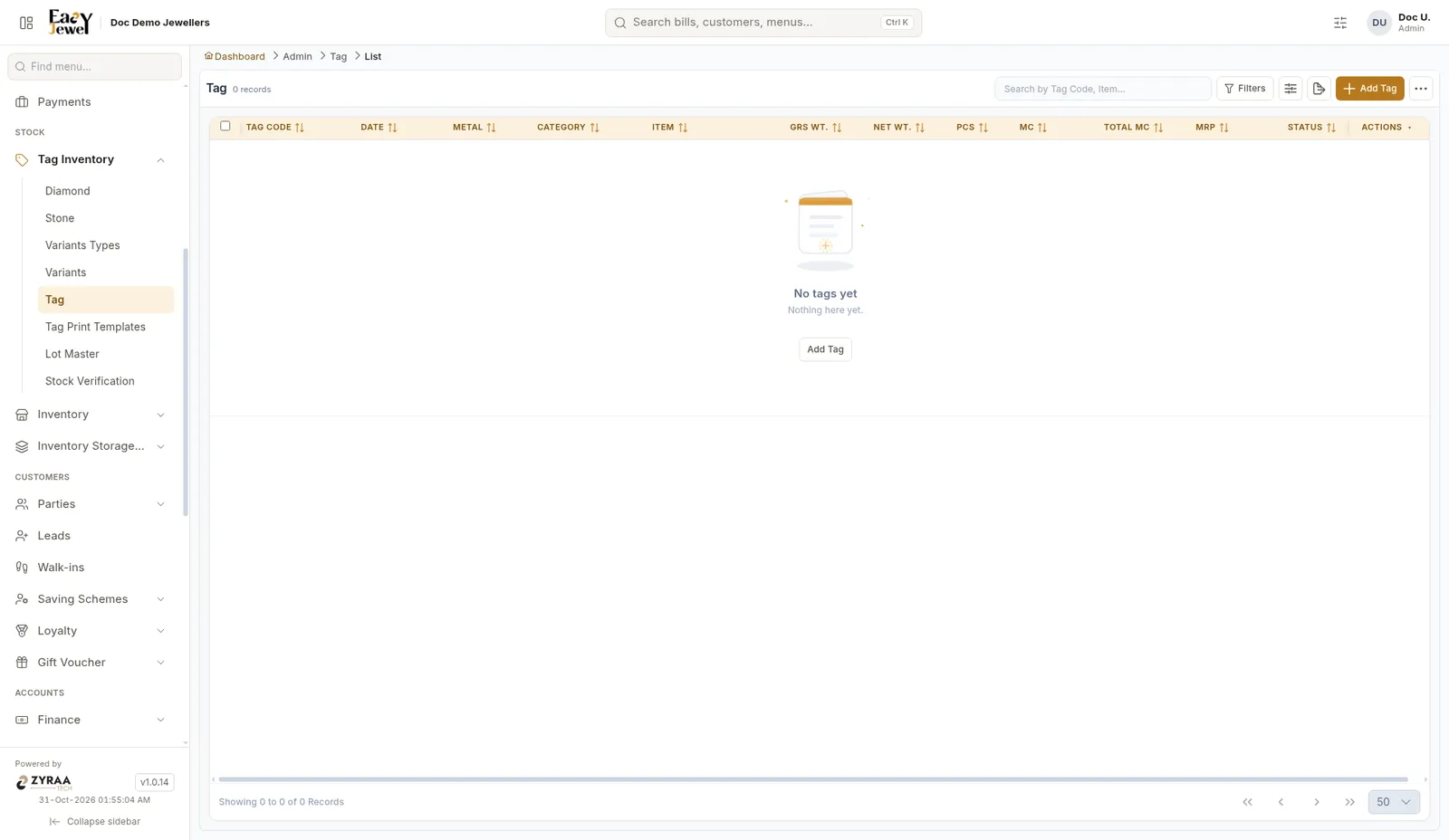
The tag list
Tag list

ColumnWhat it shows
Tag CodeThe tag number, for example GCH001
DateThe day the tag was made
Metal / Category / ItemWhat the piece is
Grs Wt / Net WtGross weight and net weight in grams
PcsNumber of pieces
MC / Total MCMaking charges per gram and in total
MRPThe fixed selling price, if any
StatusAvailable, Partial, Sold or Returned

Create tags

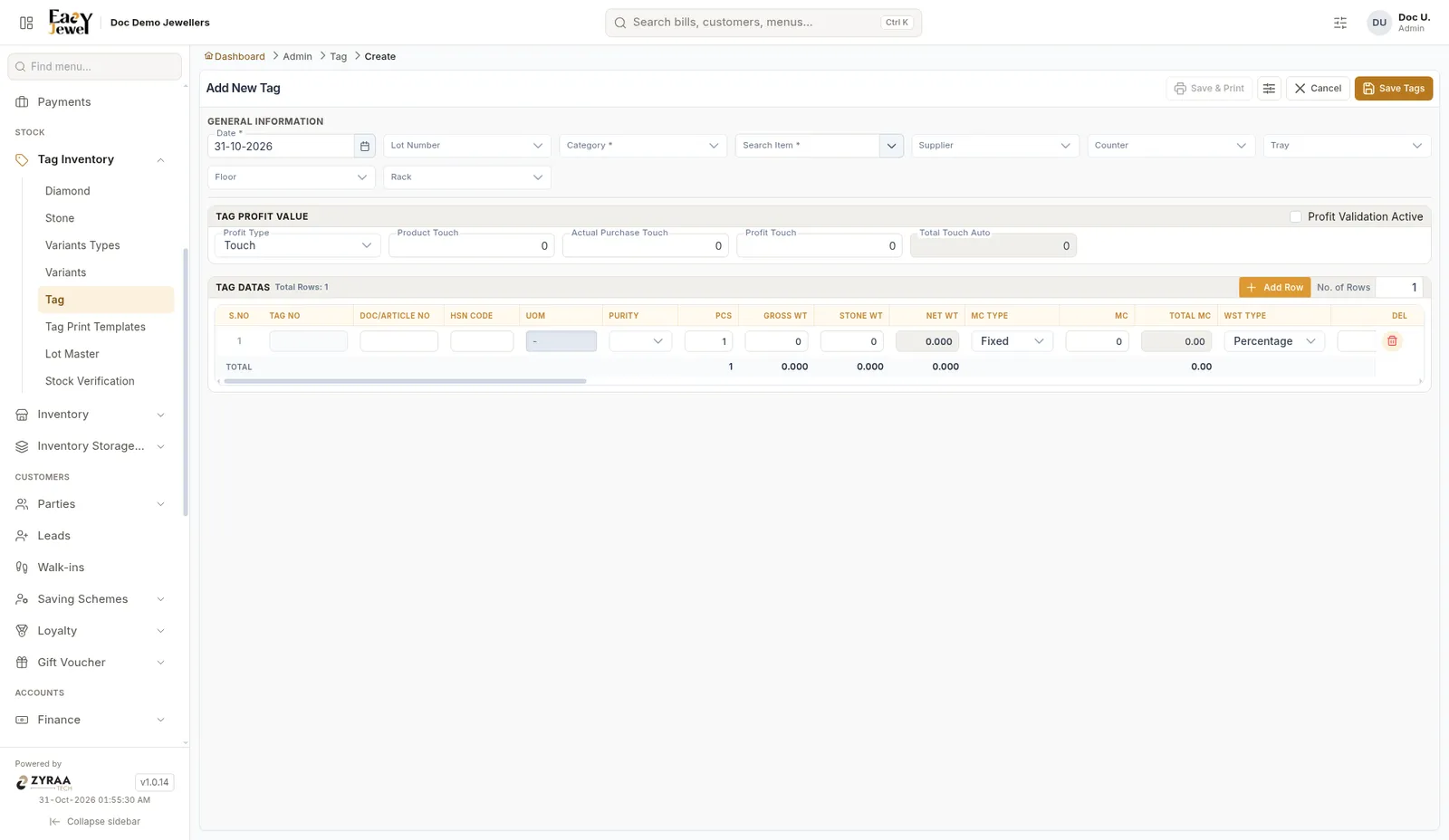
Click Add Tag to open the tag page.
Add Tag

1

Fill the general information

Choose the date, category and item, and where the piece is kept.

2

Set the profit value (optional)

Turn on profit checking if you want the app to protect your margin.

3

Enter one row per piece

Add rows in the tag data grid and fill weight, charges and price for each piece.

4

Save

Click Save Tags, or Save & Print to print the labels at once.

General information

FieldWhat to enterExample
Date *Tag date. Today’s date is filled in for you31-10-2026
Lot NumberThe lot these pieces came in. See Lot masterLOT-0012
Category *The categoryGold Kammal
Search Item *Type to find the item22K Jimikki Kammal
SupplierWho you bought it fromCoimbatore Gold House
Counter / Tray / Floor / RackWhere the piece is kept in the shopKammal counter, Tray 3

Counter, Tray, Floor and Rack come from Inventory storage. Set them up once and choose them here, so staff always know where each piece sits.

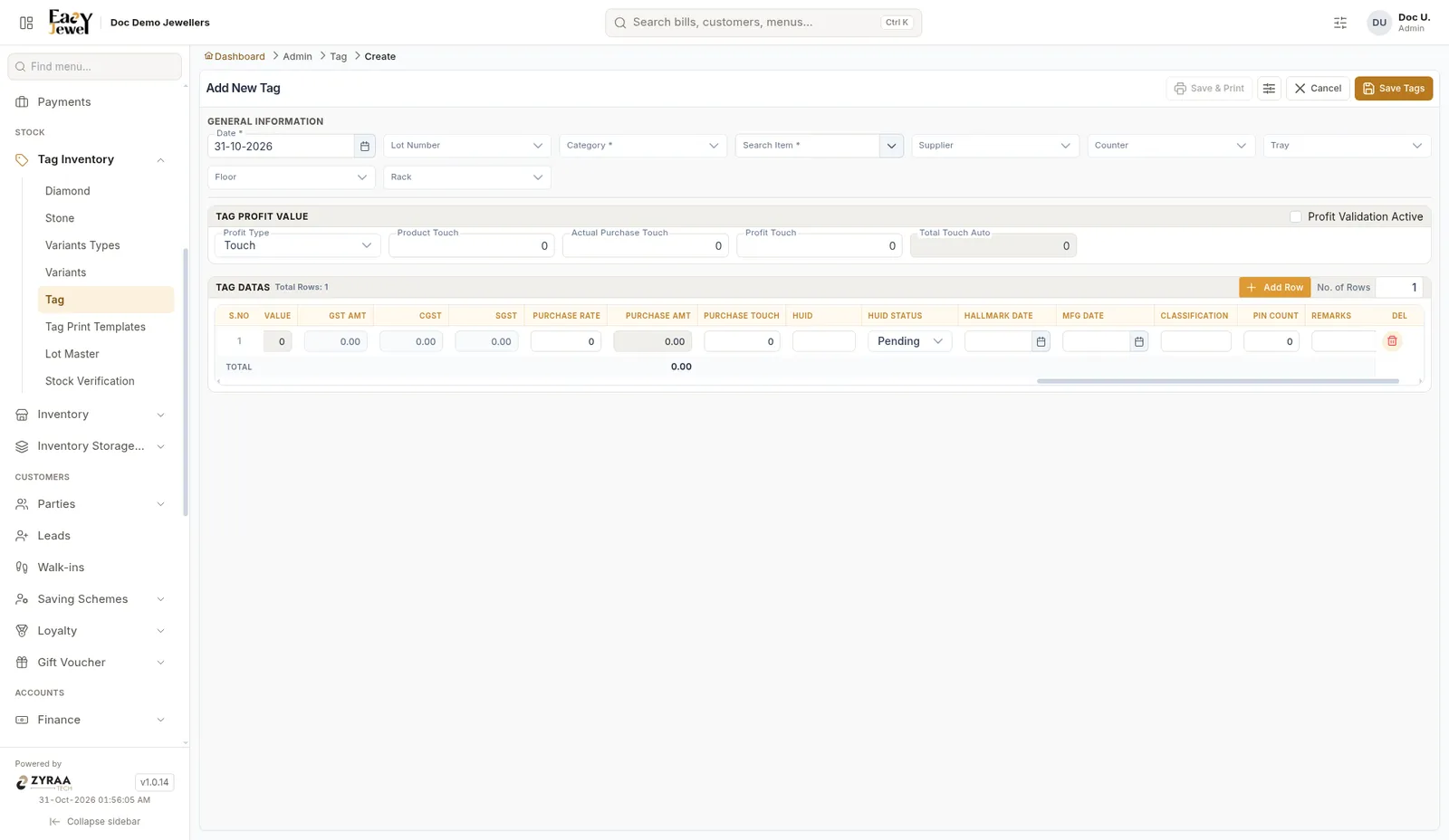
Tag profit value
Tag profit value

This section helps you make sure a piece is never priced below your profit.

FieldMeaning
Profit Validation ActiveTick to turn the profit check on
Profit TypeHow profit is measured. Touch is the default
Product TouchThe touch (purity value) of the product
Actual Purchase TouchThe touch you paid the supplier
Profit TouchThe extra touch you want as profit
Total TouchWorked out for you

Example: Purchase touch 92.0 + profit touch 4.0 gives a total touch of 96.0.

Tag data grid
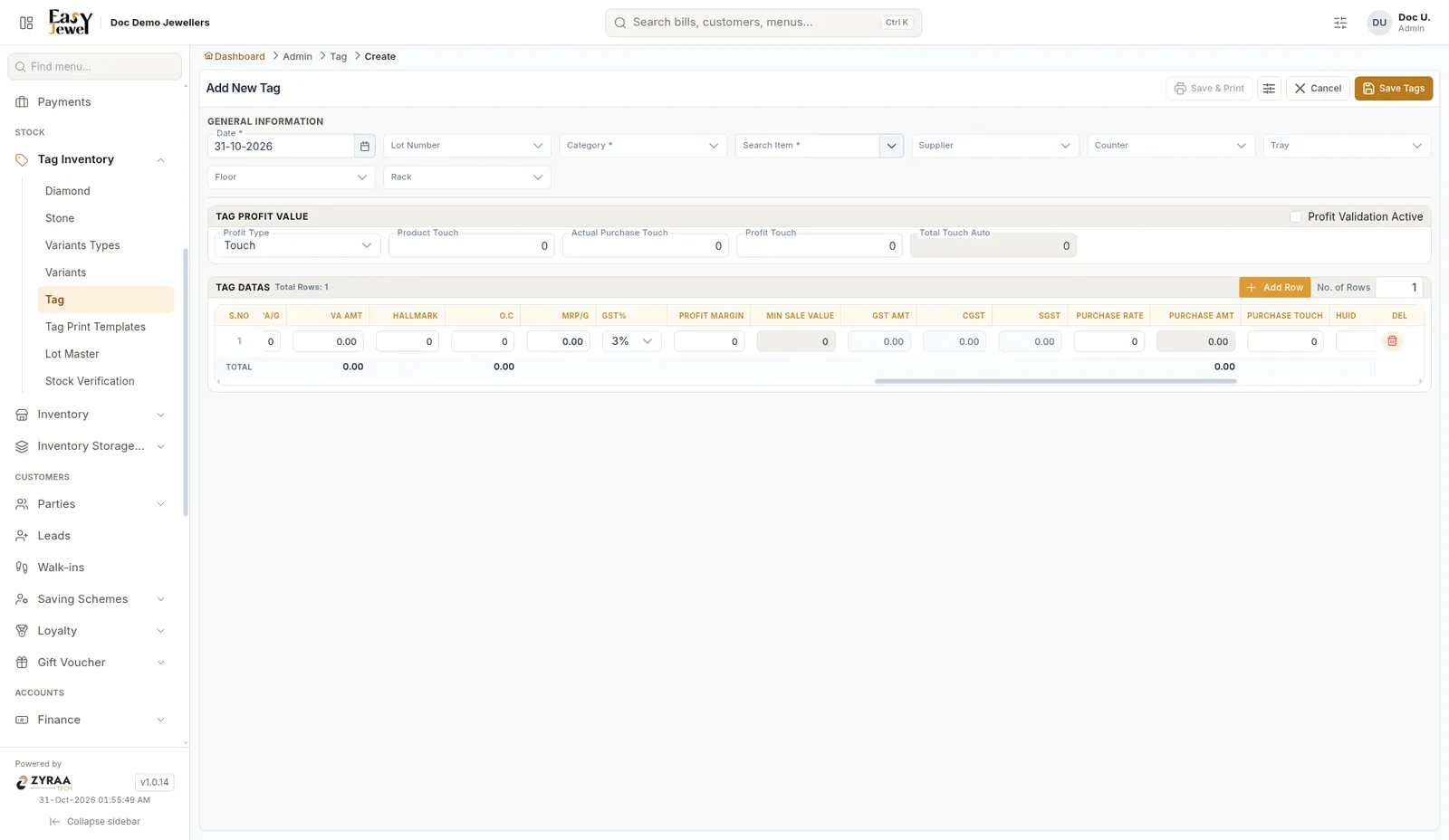
Tag data grid

Each row is one tag. Type a number in No. of Rows and click Add Row to add many rows at once, for example 10 rows for 10 pairs of kammal. Click Del to remove a row.

The grid has many columns. Here they are in simple groups.

Basic and weights

ColumnMeaning
S.No / Tag NoRow number and the tag code
Doc/Article NoSupplier’s design or article number
HSN Code / UOM / PurityHSN code, unit and purity, for example 22K 916
PcsNumber of pieces (a pair of kammal can be 2)
Gross WtFull weight with stones, in grams
Stone WtWeight of the stones
Net WtGold weight = Gross Wt − Stone Wt

Example: A 22K jimikki weighs 8.450 g gross with 0.350 g stones. Net weight is 8.100 g.

Making charges (MC)

ColumnMeaning
MC TypeFixed (default) or per gram
MCThe making charge value
Total MCTotal making charge for the piece

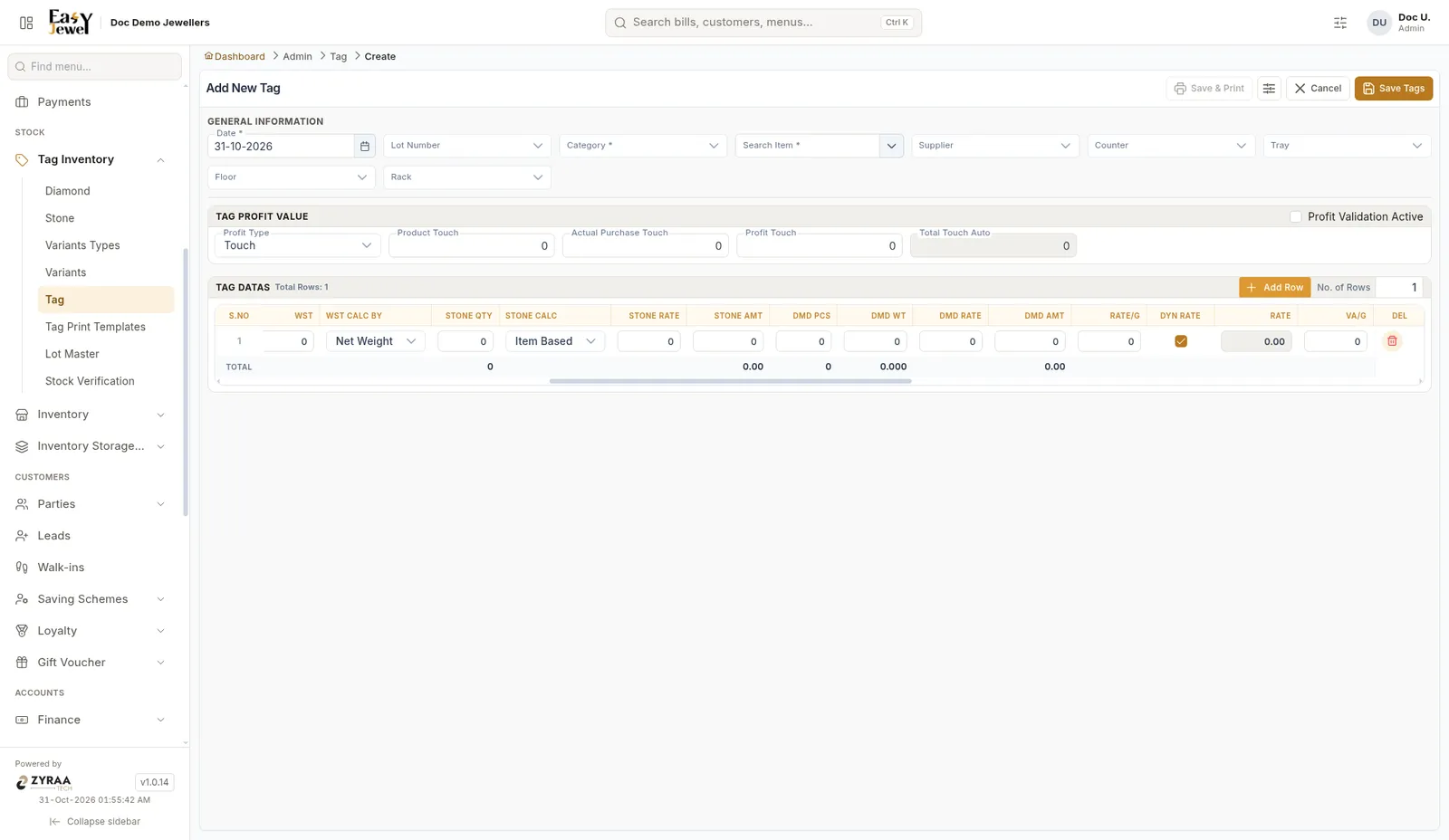
Wastage (WST)

ColumnMeaning
WST TypePercentage (default) or weight
WSTThe wastage value, for example 12%
WST Calc ByWeight used for wastage. Net Weight is the default

Stones

ColumnMeaning
Stone QtyNumber of stones
Stone CalcItem Based (default) or per stone
Stone Rate / Stone AmtRate and total value of stones

See Diamonds and stones to set up stone names and rates.

Diamonds

ColumnMeaning
Dmd Pcs / Dmd WtNumber and weight of diamonds
Dmd Rate / Dmd AmtRate and total value of diamonds

Rate and value addition (VA)

ColumnMeaning
Rate/GGold rate per gram
Dyn RateTicked by default. The piece uses the day’s gold rate at billing time
RateRate used for this tag
VA/G / VA AmtValue addition per gram and in total
O.COther charges
MRP/GFixed price per gram, for MRP items
Profit Margin / Min Sale ValueYour margin and the lowest price staff may sell at

Keep Dyn Rate ticked for gold jewellery. The bill then picks up the latest gold rate, so you never sell at an old rate.

Hallmark and HUID

ColumnMeaning
HallmarkHallmark charges
HUIDThe 6-character hallmark unique ID
HUID StatusPending until the HUID is entered or confirmed
Hallmark Date / Mfg DateHallmark date and making date

GST

ColumnMeaning
GST%3% by default
GST AmtTotal GST
CGST / SGSTGST split into central and state parts (1.5% + 1.5%)

Purchase

ColumnMeaning
Purchase Rate / Purchase AmtWhat you paid
Purchase TouchThe touch you paid the supplier

Other

ColumnMeaning
ClassificationYour own grouping, such as Bridal or Daily wear
Pin CountNumber of pins or screws, for earrings
RemarksAny note

Choose the columns you see

Customize fields

Click Customize visible fields to hide columns you never use. This keeps the grid short and easy for your staff.

Save or Save & Print

ButtonWhat it does
Save TagsSaves all rows as tags
Save & PrintSaves and sends the tag labels to your printer. It turns on once the rows are filled
CancelLeaves without saving

The label design comes from Tag print templates.

Tag statuses

Every tag has a status. Use Filters on the tag list to see tags of one status.
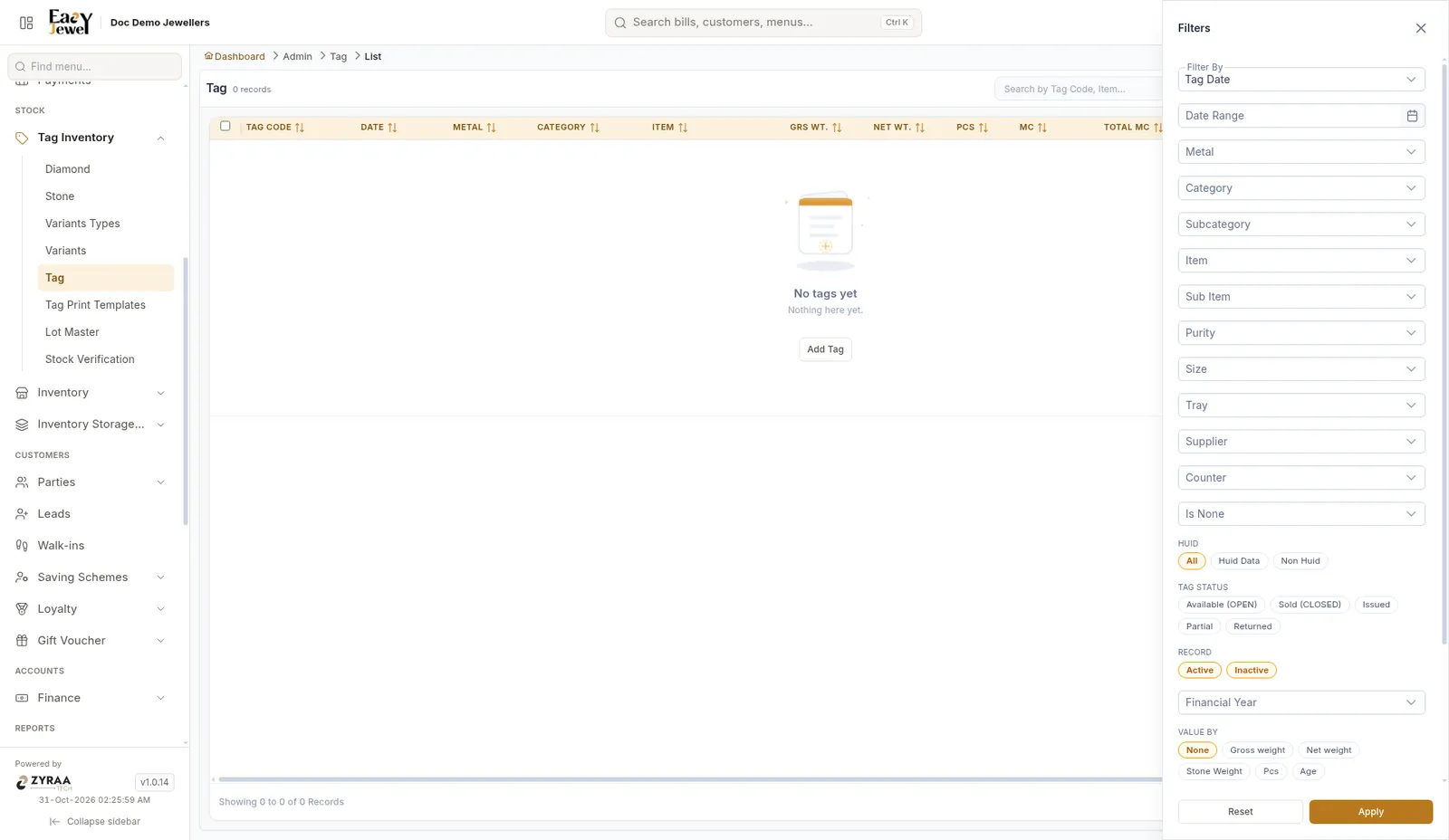
Tag status filter

StatusMeaning
AvailableOpen and in stock, ready to sell
PartialPart of the tag is sold or issued. The rest is still open
SoldFully sold. The tag is closed
IssuedGiven out from stock
ReturnedCame back. It stays Returned until someone reopens it by hand

How tags change your stock

Creating a tag adds the piece to your stock. That is the moment it counts.

  • An opening balance or a purchase does not add stock for tagged items. Only the tag does. This stops the same piece being counted twice.
  • Untagged stock = stock on hand − open tags (tags that are Available or Partial).
  • When a tagged piece is returned, its tag stays Returned. It will not come back for sale until someone opens the tag again by hand.
  • A sale can go ahead even if stock is low. This depends on your sales settings.

After a return, check the piece and reopen its tag yourself. Until then it will not show as available.