Location
Location masters control which places users can pick when they enter an address on customers, suppliers, bills and your own shop. Set them up first, in this order: Countries → States → Cities → Zones. Client Locations (your branches) can be set up at any time.
Menu: Administration → Location
Allowed Countries
Countries users can choose during address entry.
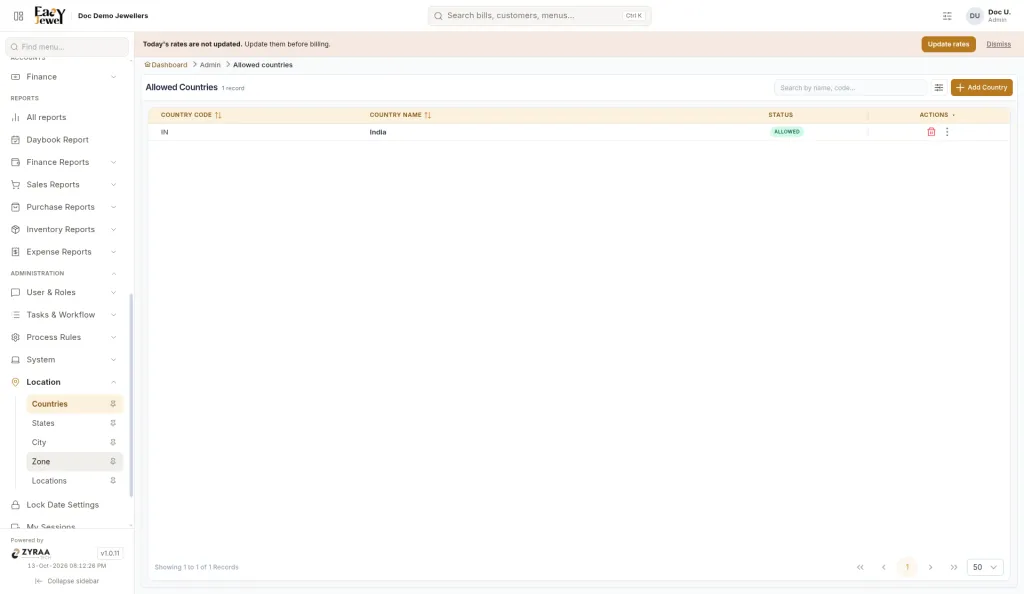
- Click Add Country.
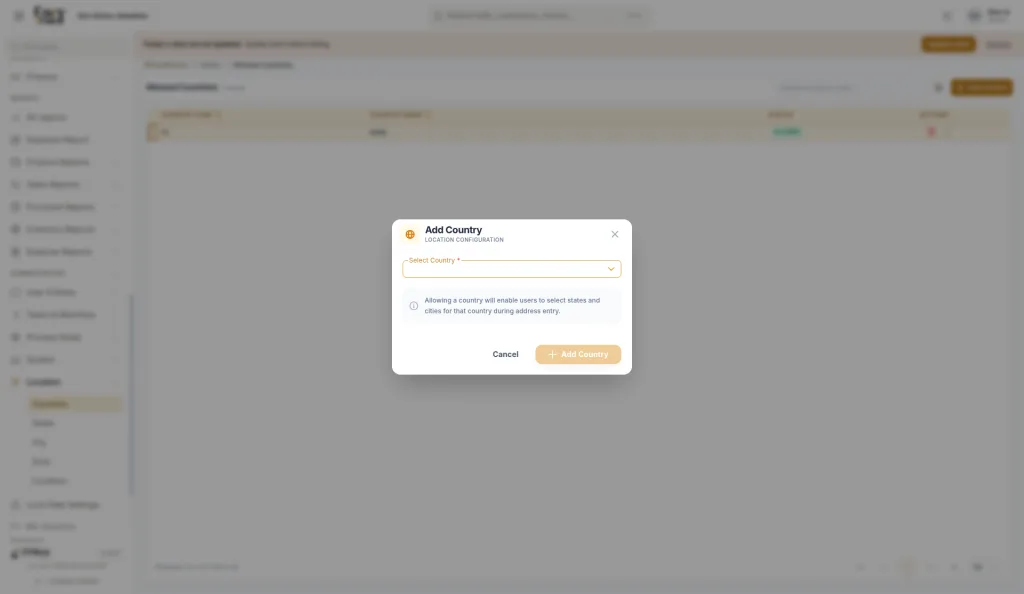
- Pick a country from Select Country (required).
- Click Add Country.
To remove a country, use the trash icon or ⋮ → Delete on its row.
Allowed States
States inside an allowed country.
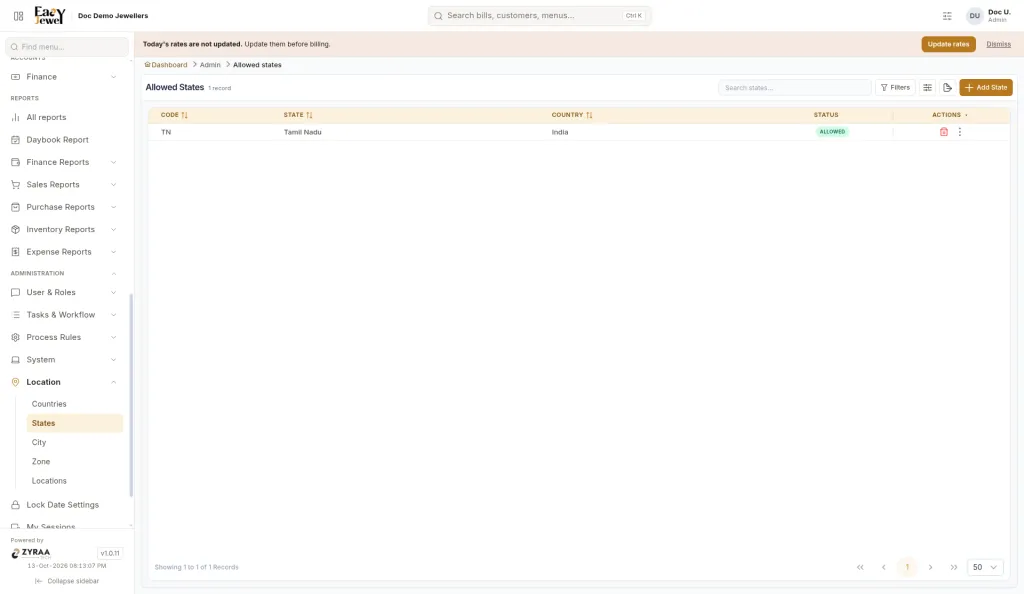
- Click Add State.
- Select Country (required). The state list loads for that country.
- Select State (required), then click Add State.
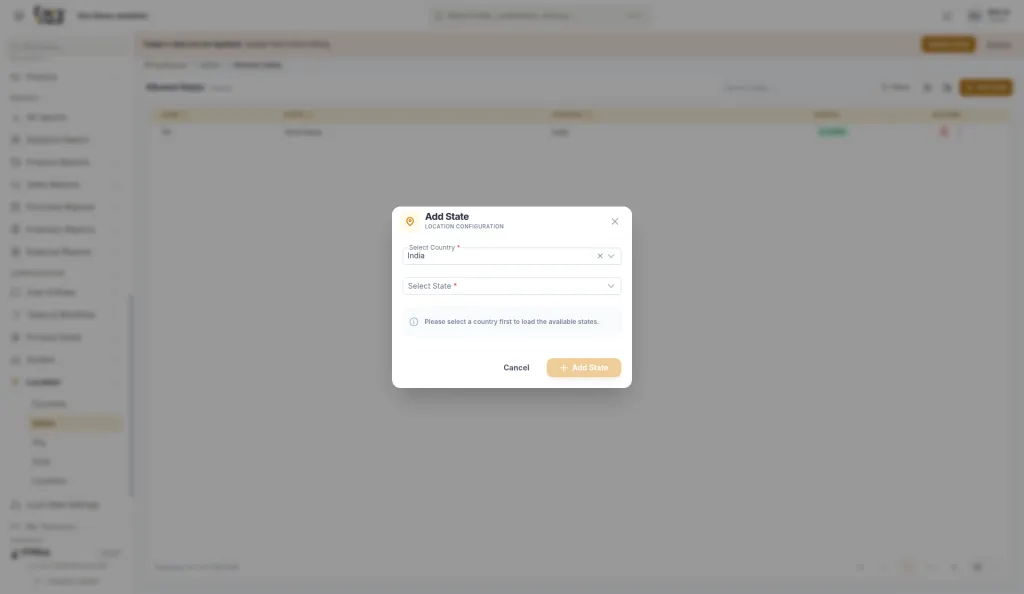
The list supports search, filters, column customisation and export.
Cities
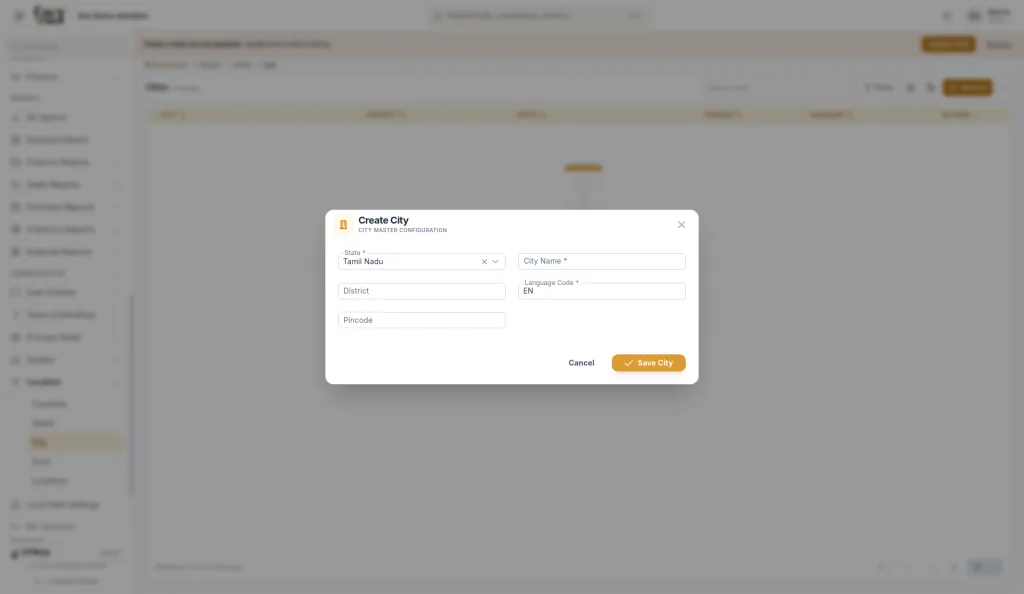
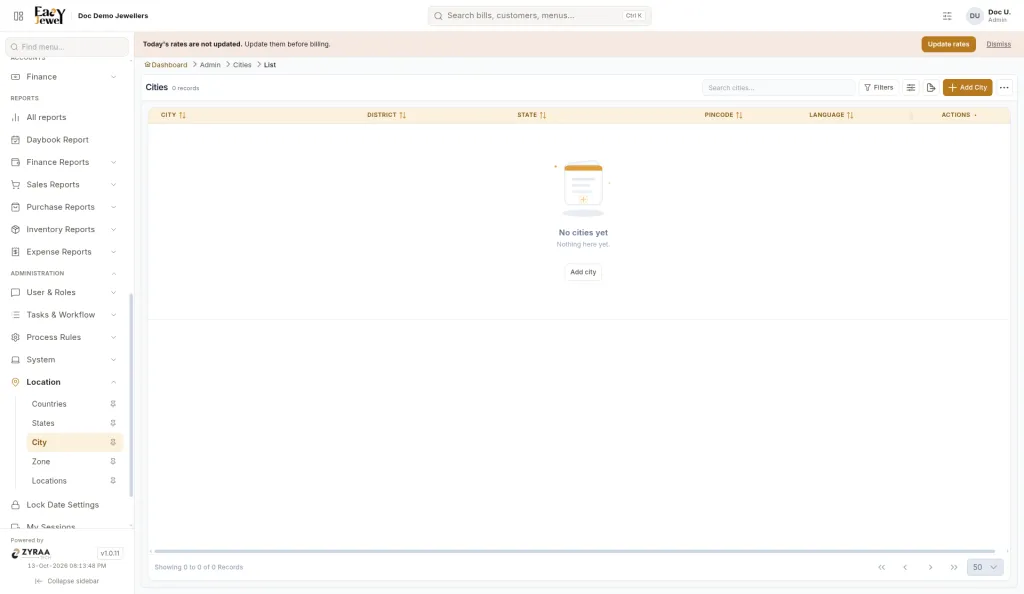
Click Add City, fill in the fields and click Save City. To add many cities at once, go to ⋯ More actions → Download template, fill it in, then use Upload Excel. Last upload history shows past imports.
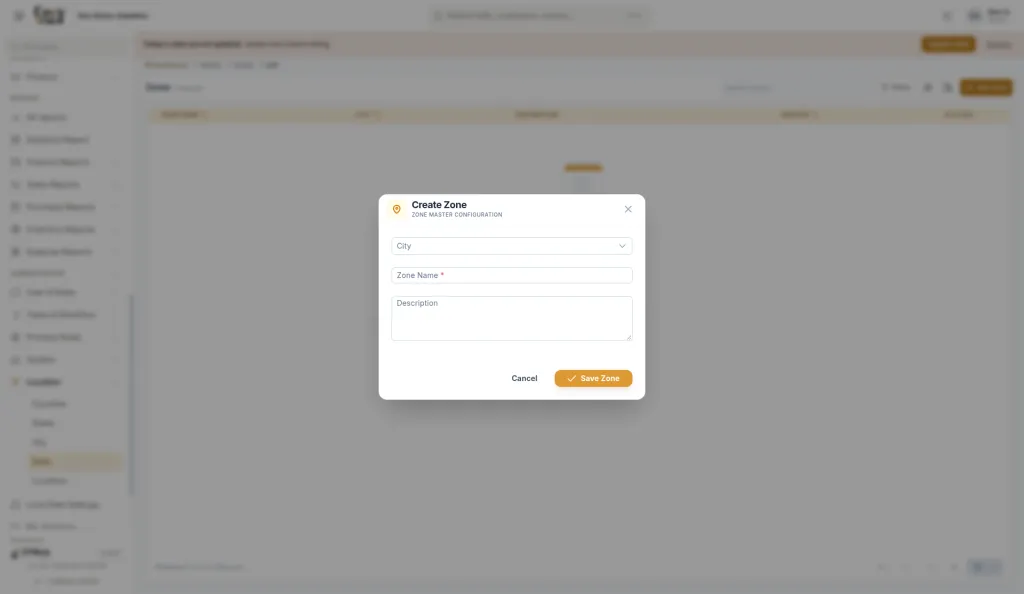
Zones
Areas inside a city, for example T. Nagar in Chennai. Add at least one city first.
Client Locations
Your own shop locations, such as Head Office or a branch.
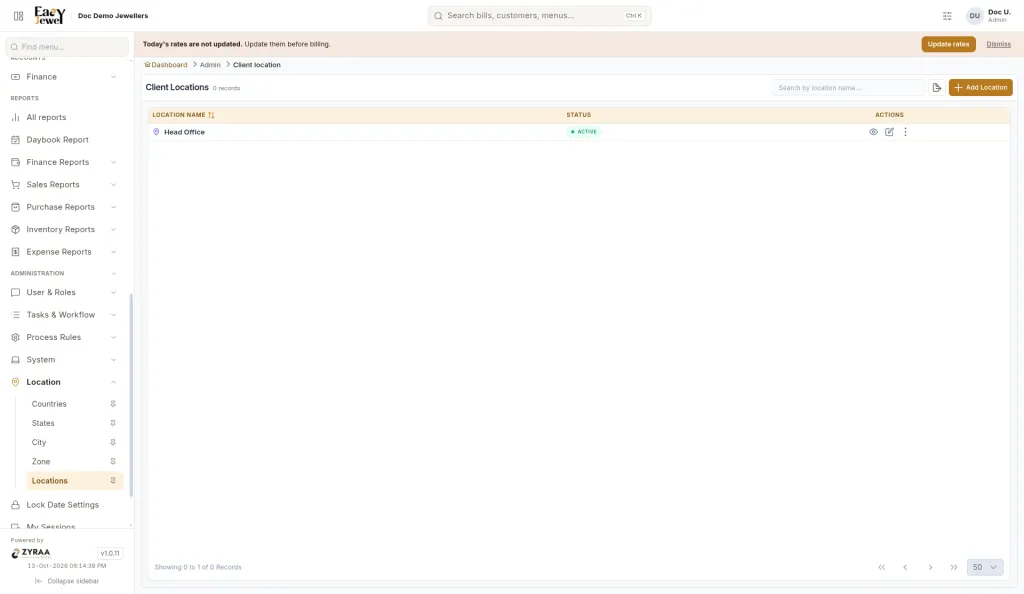
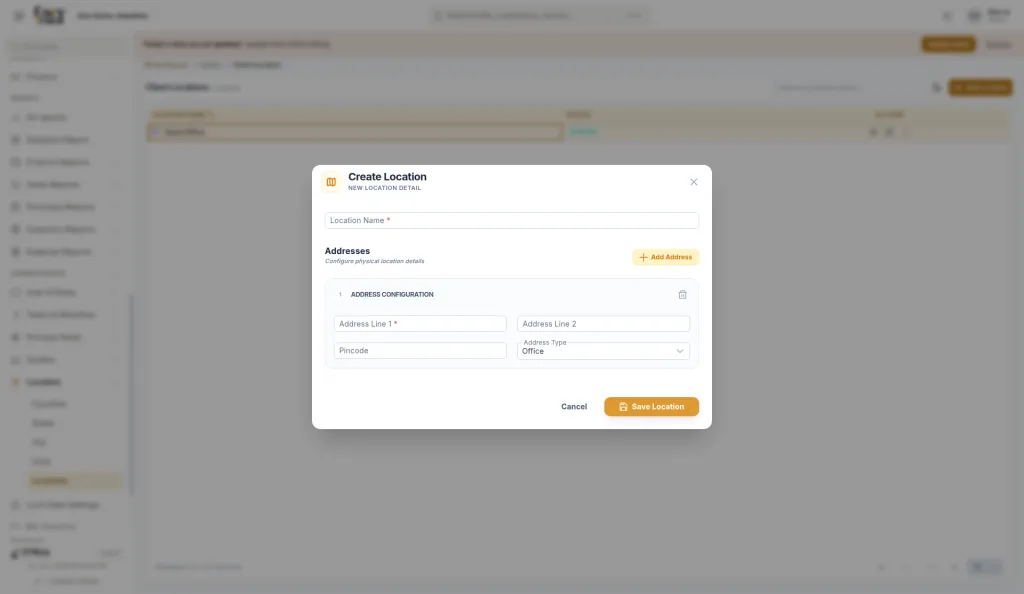
- Location Name (required).
- Addresses: click Add Address for each one. Each address has Address Line 1 (required), Address Line 2, Pincode, and Address Type (Office, Registered, Billing, Shipping or Home).
- Row actions are View, Edit, Deactivate and Delete. When you edit, save with Update Location.