Purchase bill
Menu: Daily Counter → Purchase → Purchase bills
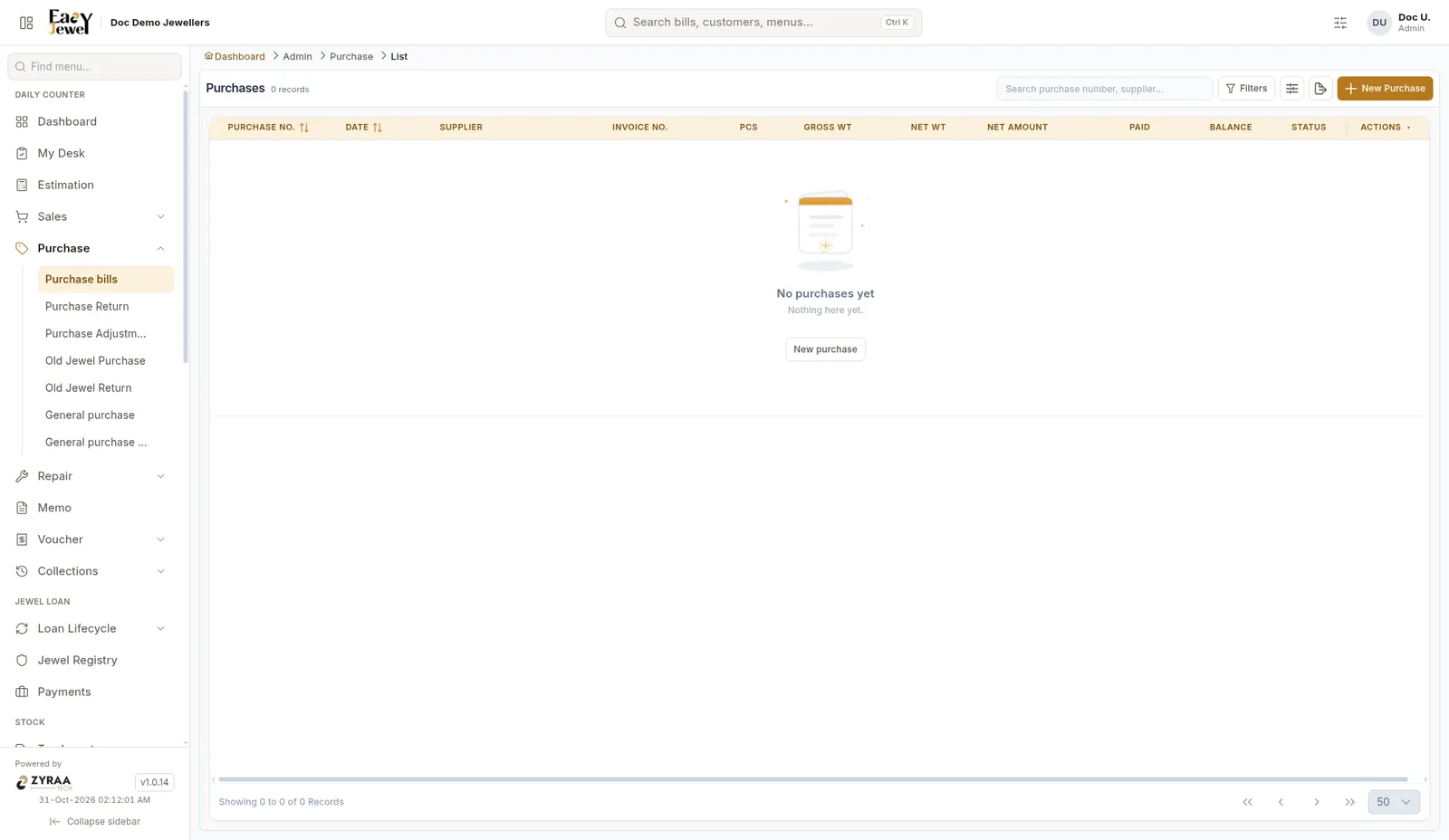
New purchase
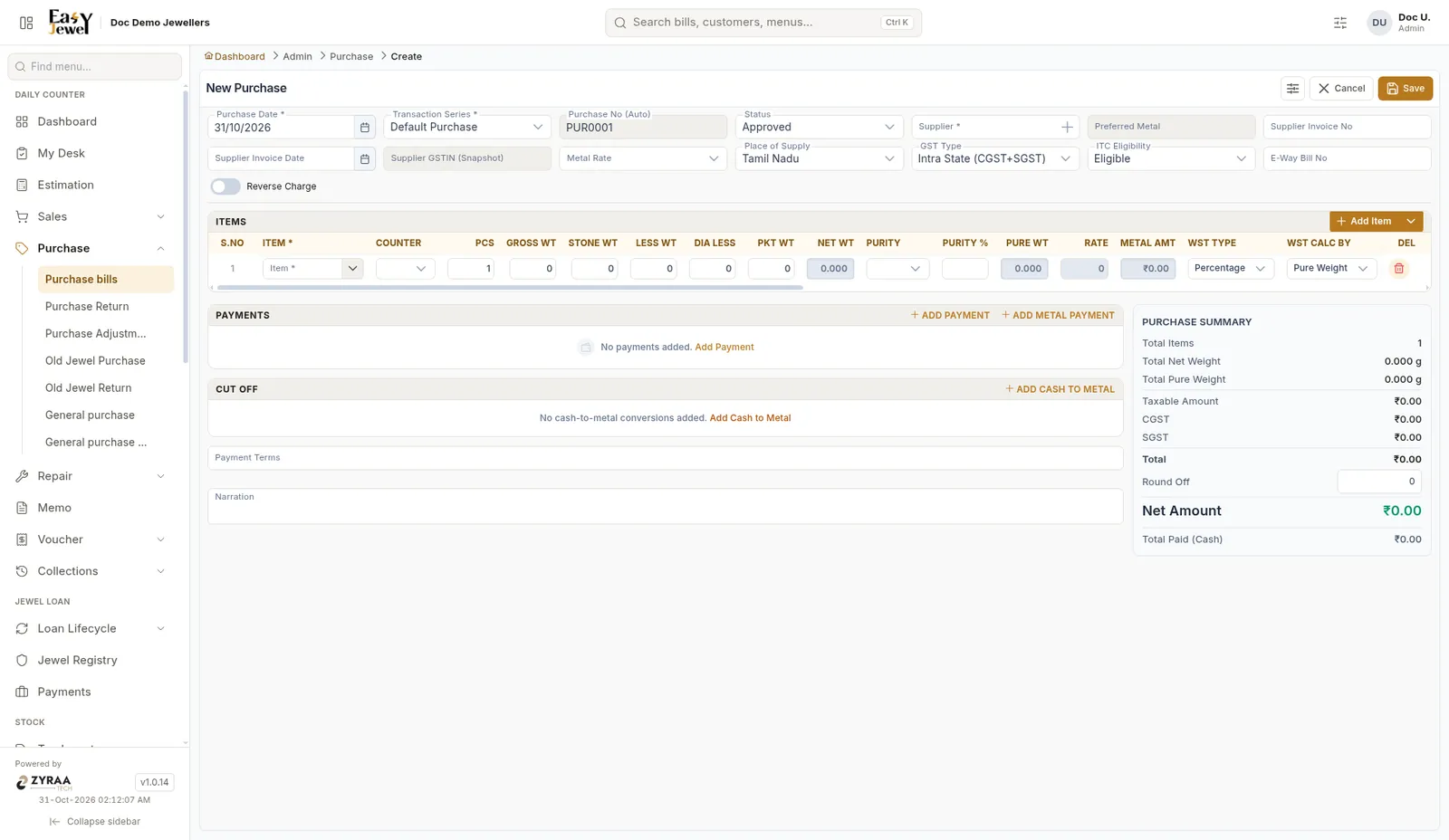
Header
Items
Click Add Item. Columns: Item, Counter, Pcs, Gross Wt, Stone Wt, Less Wt, Dia Less, Pkt Wt, Net Wt, Purity, Purity %, Pure Wt, Rate, Metal Amt, WST Type, WST Calc By (Pure Weight), plus making charge and diamond columns.
Payments
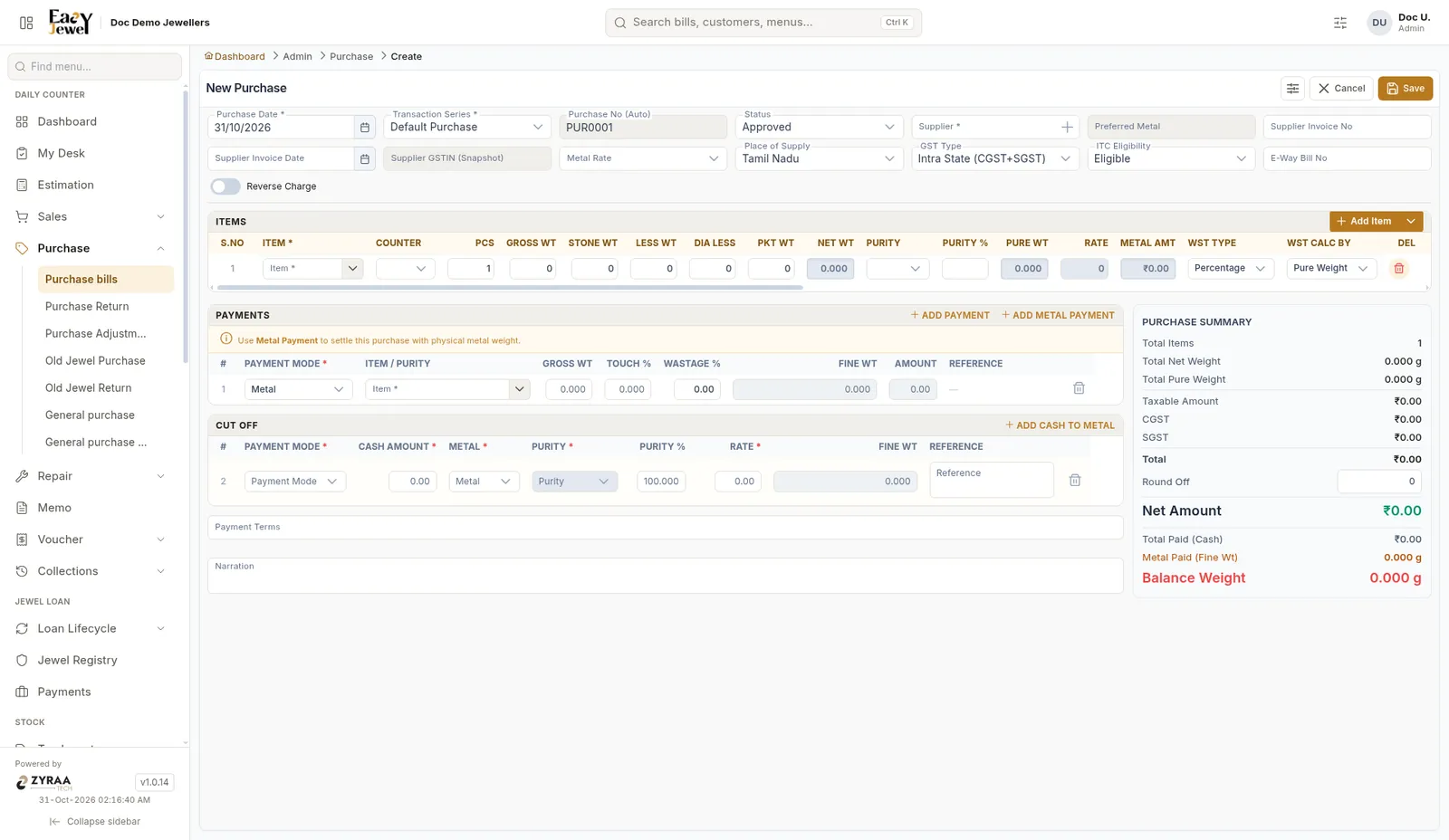
Click Add Payment for money paid, or Add Metal Payment when you pay in gold.
Cut off
Click Add Cash to Metal to convert a cash amount into metal weight.
Add Payment Terms and Narration, check the summary, then Save.
For tagged items, a purchase does not add stock. Stock is added when you create the tags. See Tags.
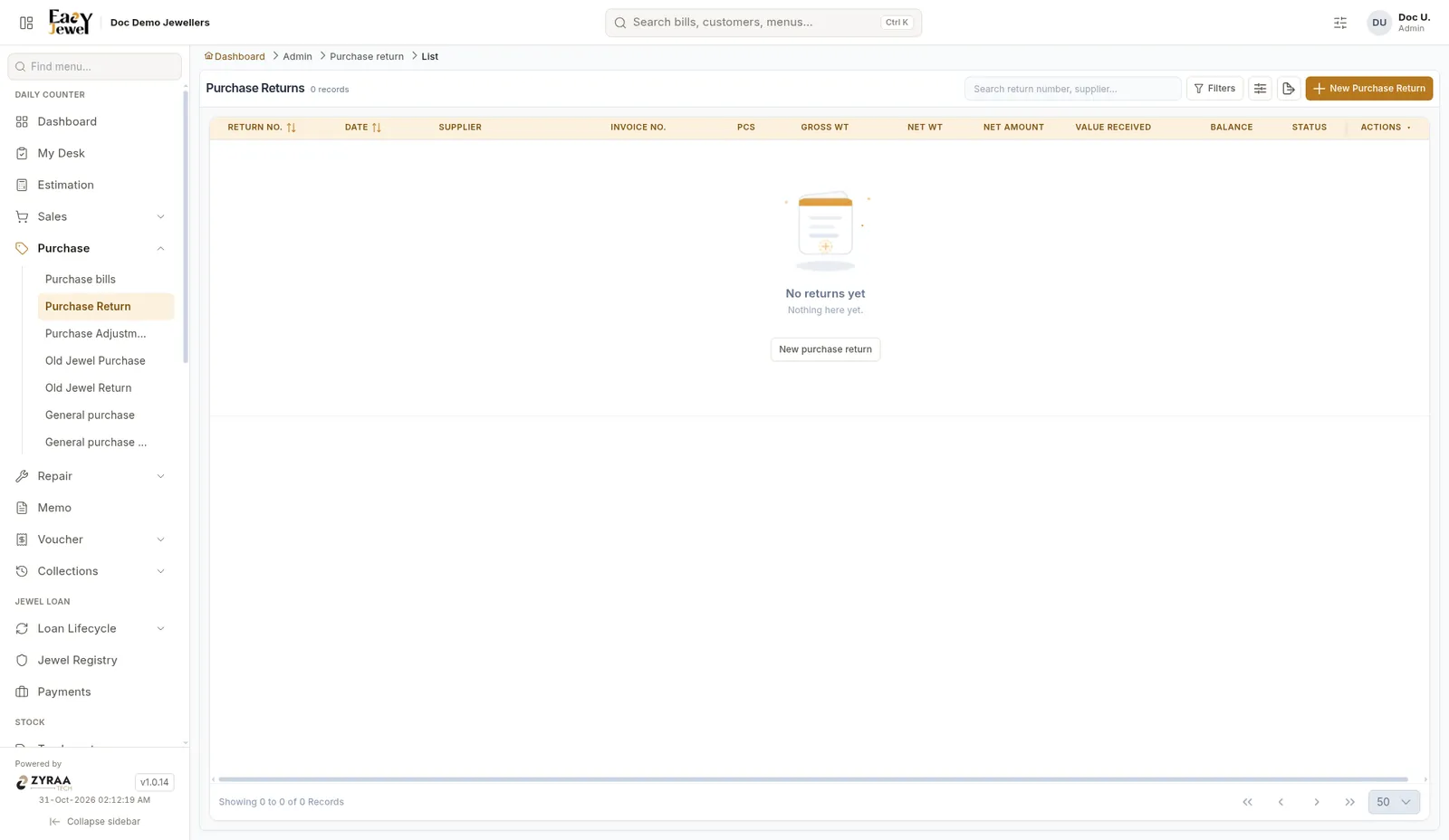
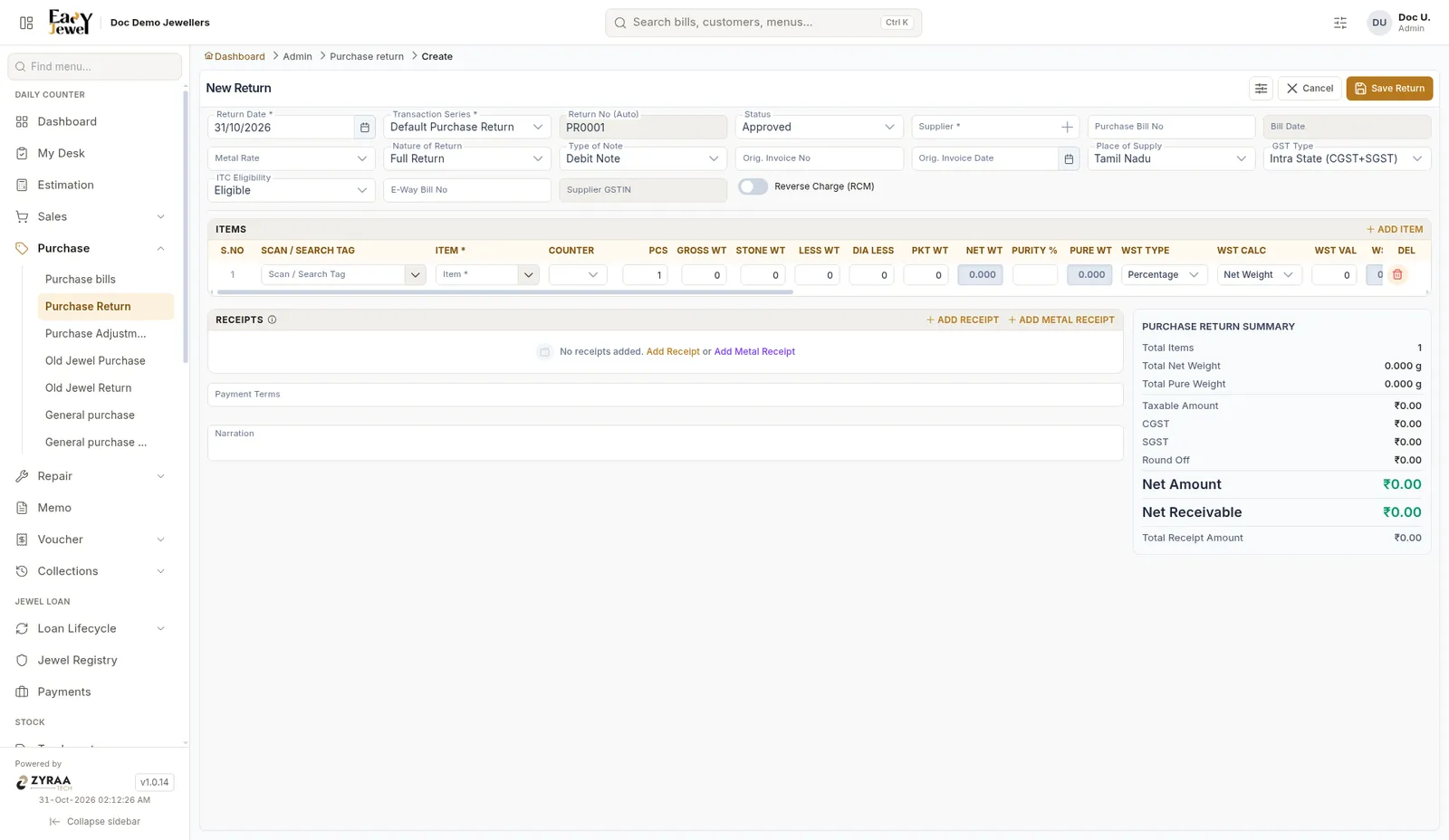
Purchase return
Menu: Daily Counter → Purchase → Purchase Return
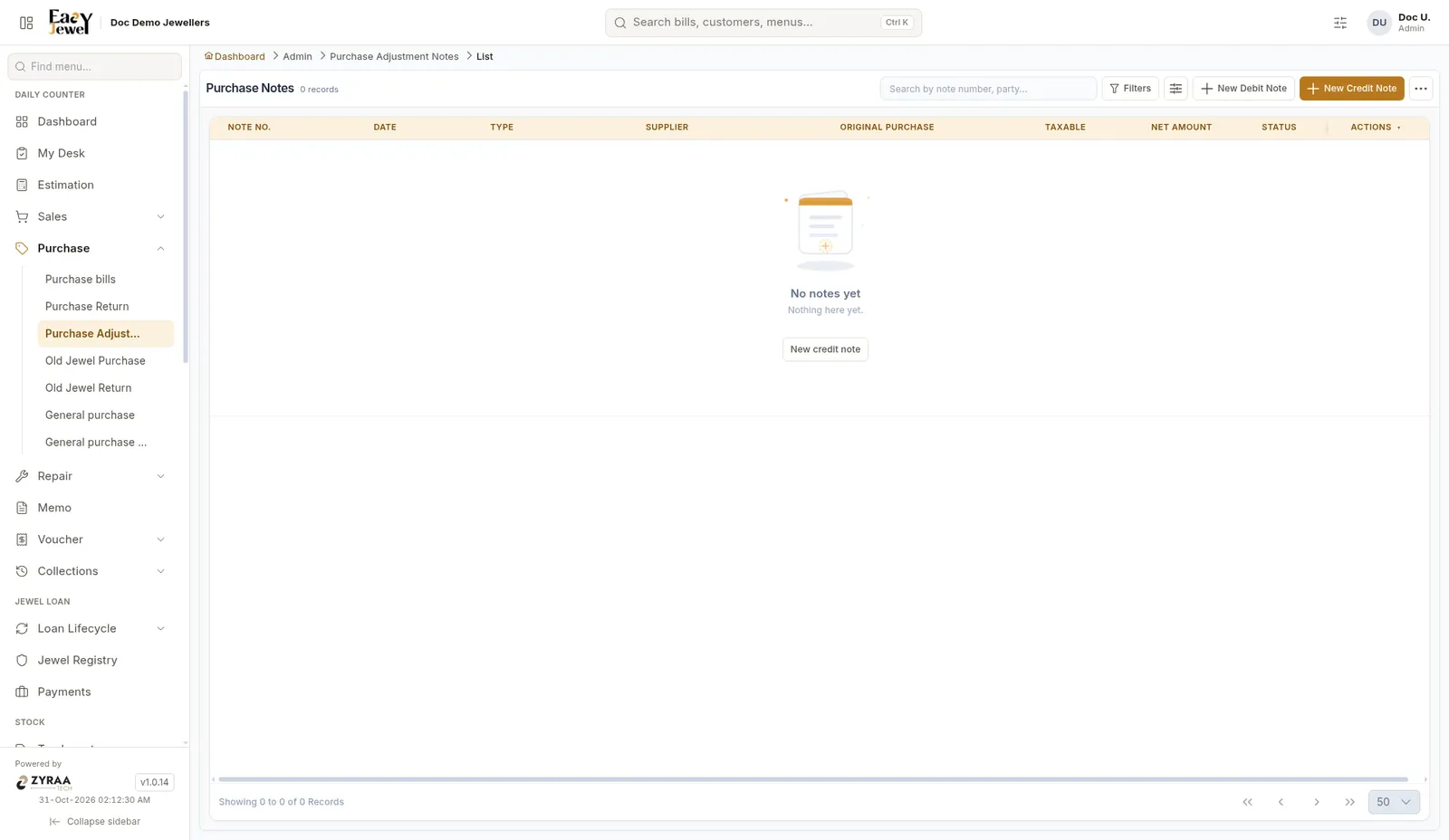
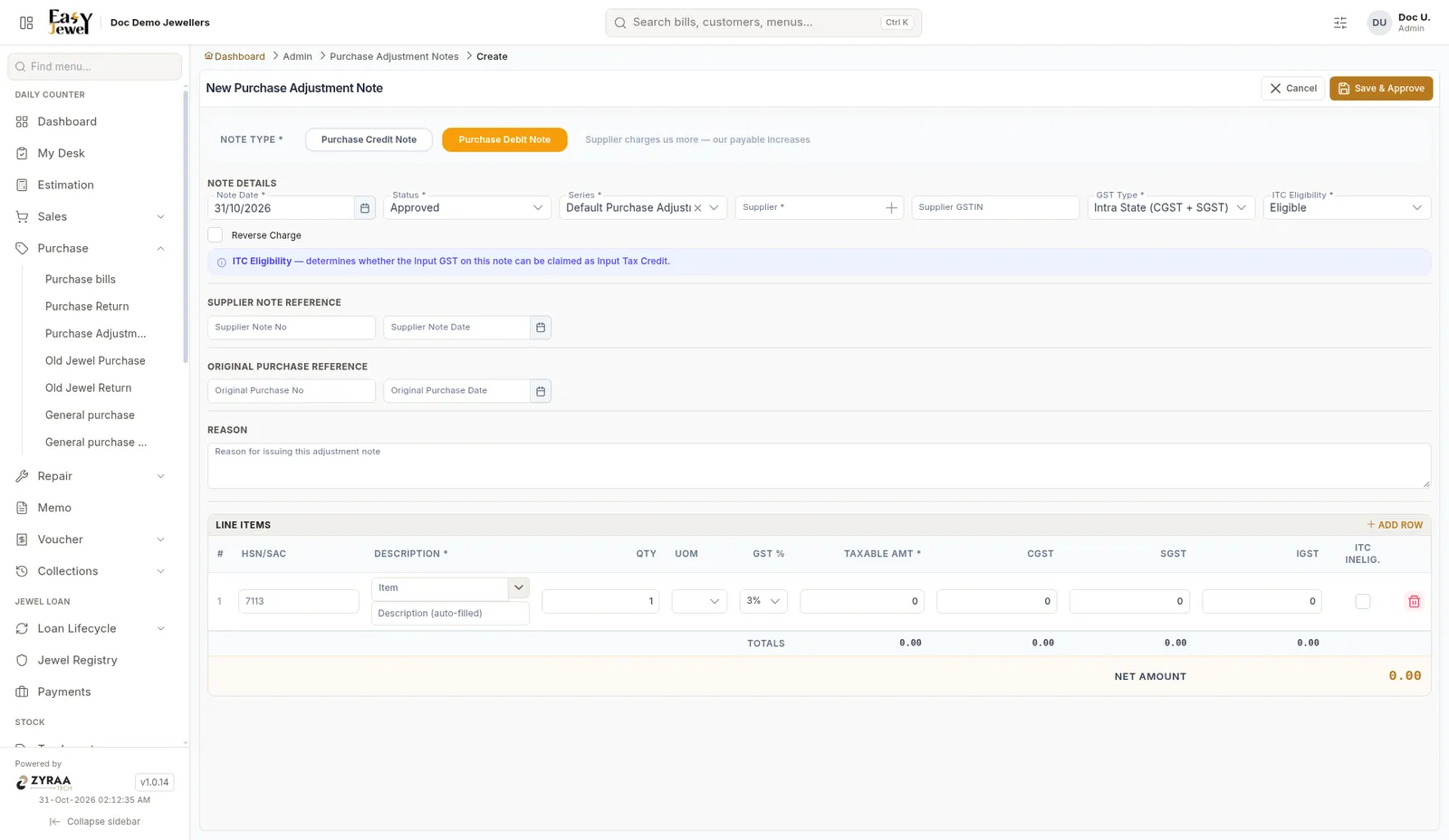
Purchase adjustment notes
Menu: Daily Counter → Purchase → Purchase Adjustment Notes