
Roles and permissions
Menu: Administration → User & Roles → Roles
The list shows Role, Description and Status. Click Add Role.
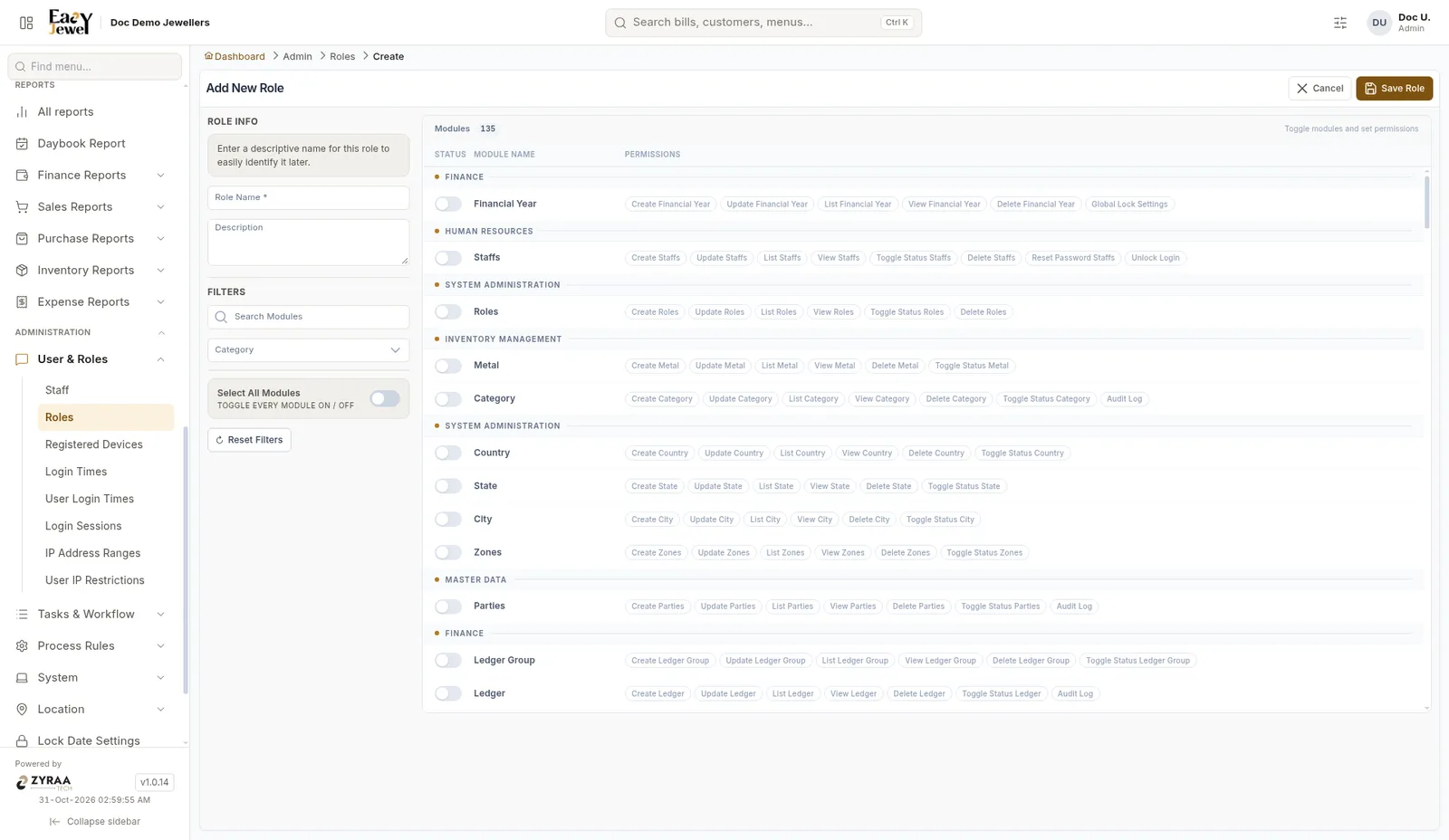
Turn on modules
The list shows every module (135 in the demo), grouped as Finance, Inventory Management, Master Data and so on. Turn on the Status toggle for each module this role can use. Select All Modules turns every module on or off.
Use Search Modules and Category to find a module quickly.
Don’t give Delete to counter staff. Keep it for the owner or manager.