
Getting started and login
Welcome to EasyJewel! This page shows you how to sign in, what you see on the home screen, and how to log out. It takes about 5 minutes.
You need a username and password from your shop owner or admin. For example, the owner of Sri Lakshmi Jewellers, Madurai creates a login for each billing staff member.
Sign in
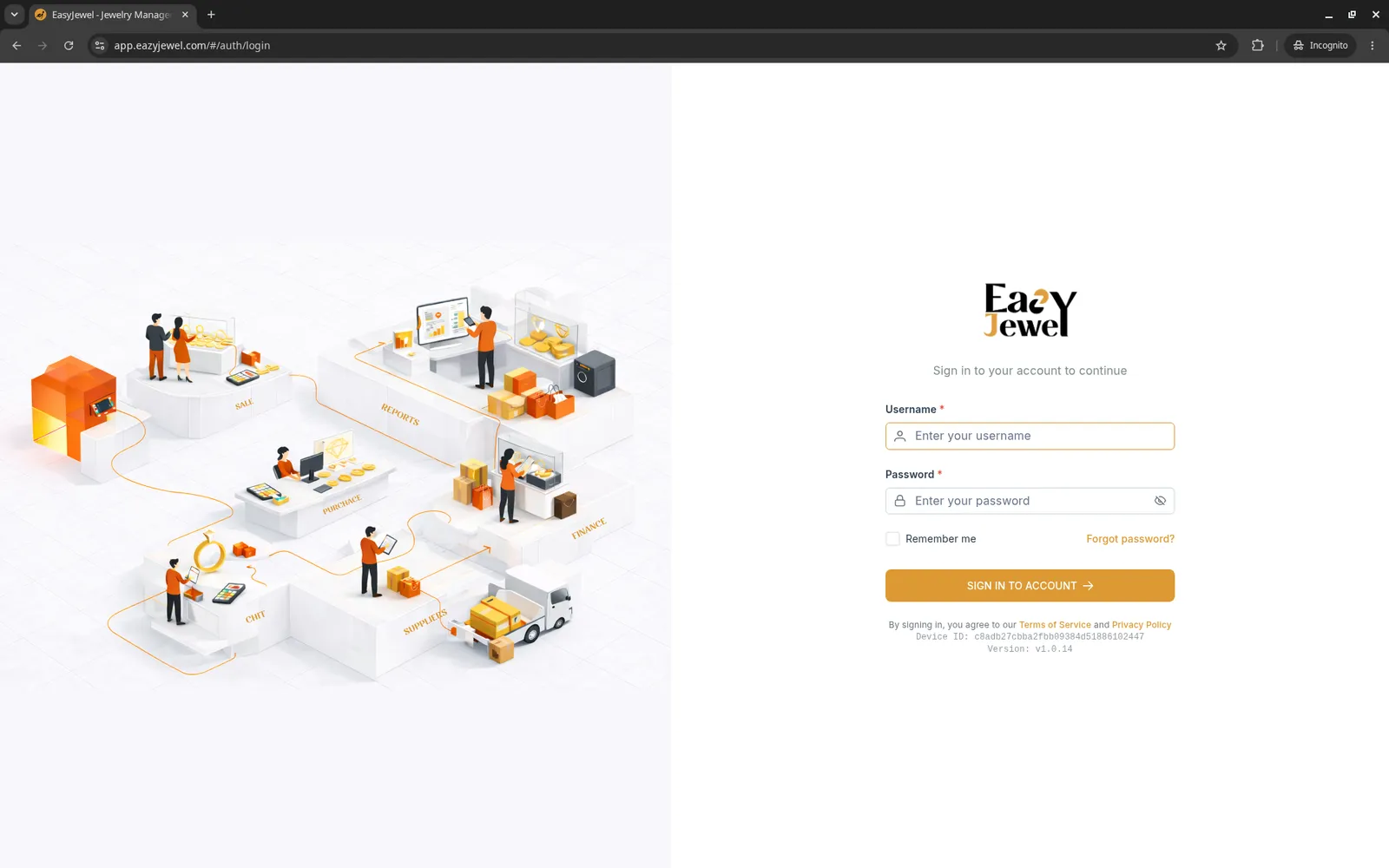
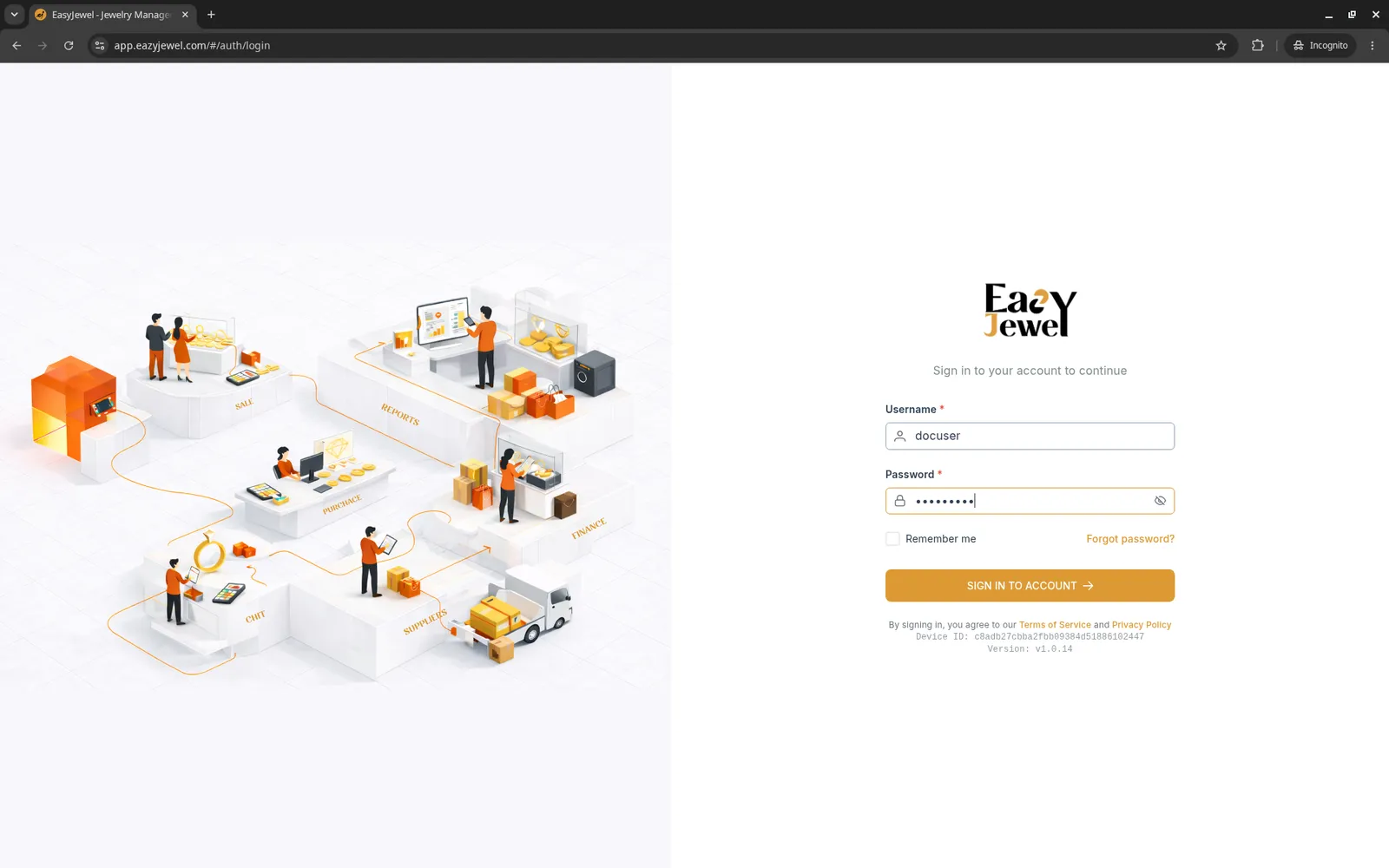
Forgot your password? Click Forgot password? on the login page, or ask your shop admin to reset it.
Your home screen (Dashboard)
After login you see the Dashboard. Your shop name and your name are shown at the top right.
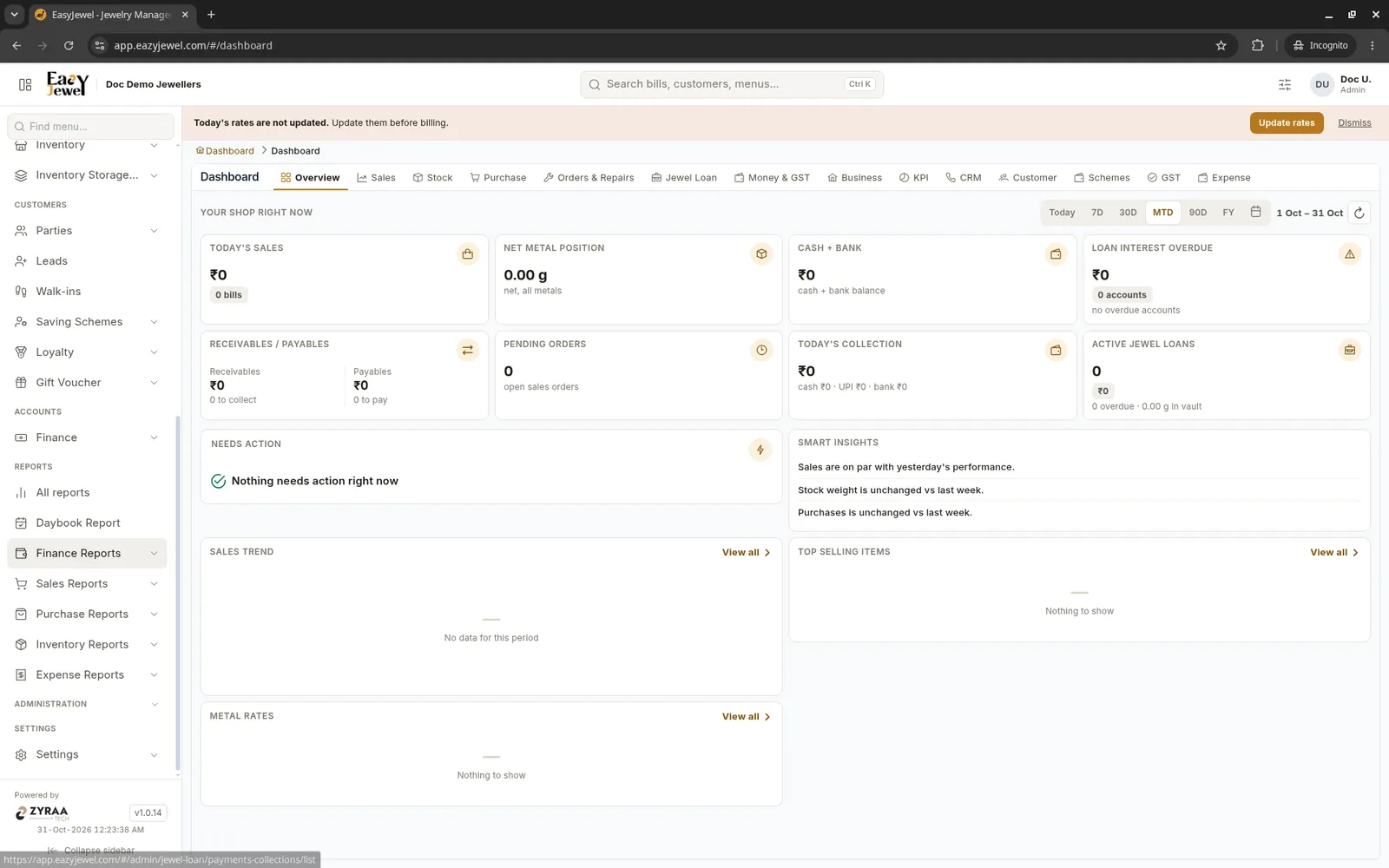
- Today’s rates are not updated: if you see this banner in the morning, click Update rates and enter today’s gold and silver rate per gram before you start billing.
- Your shop right now: today’s sales, cash and bank, active jewel loans, pending orders and today’s collection at a glance.
- Tabs such as Sales, Stock, Jewel Loan and Schemes show more detail. Use Today, 7D, 30D to change the period.
- Press Ctrl + K to search bills, customers or menus quickly.
The main menu
The menu on the left groups everything by your daily work.
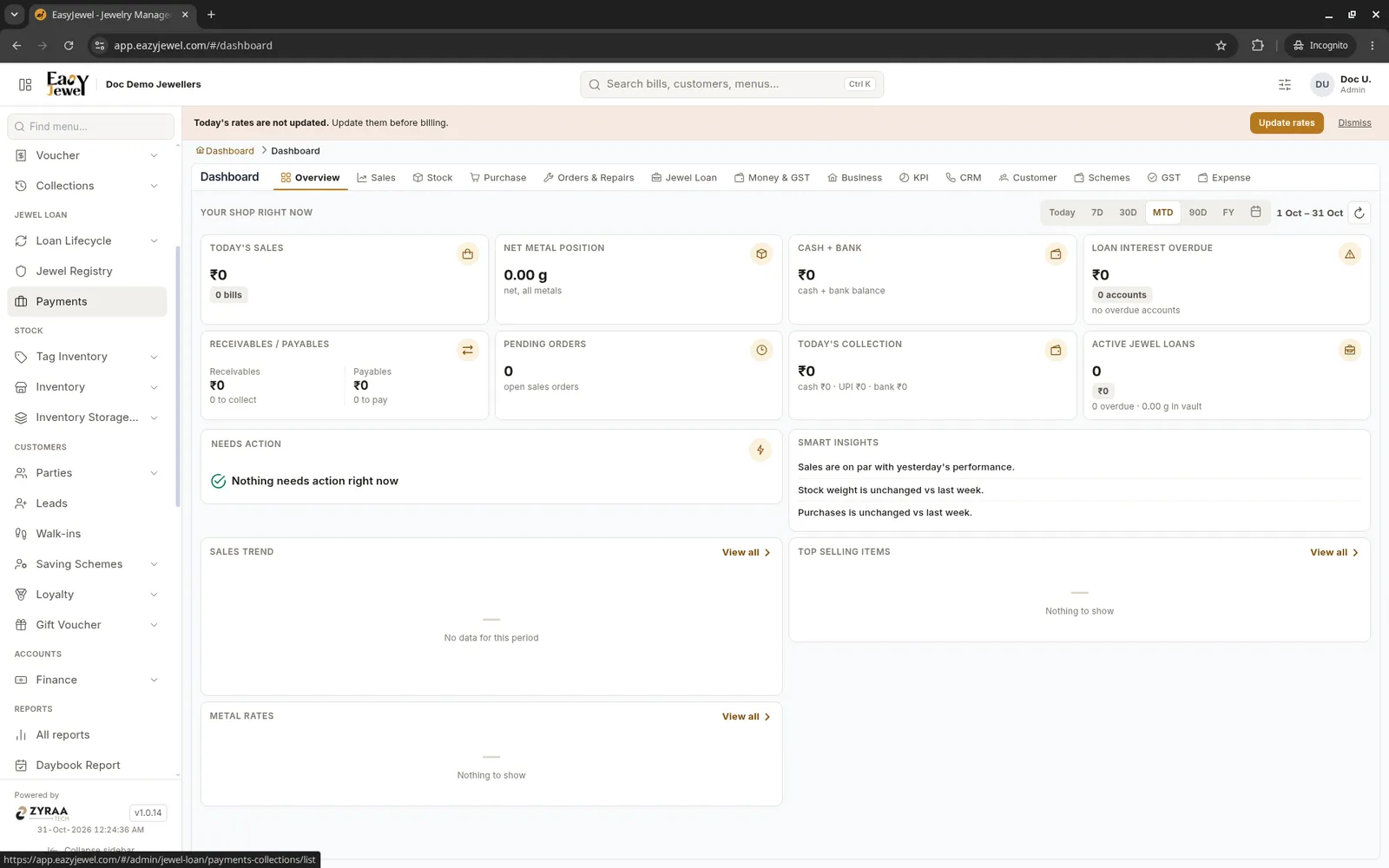
Type a menu name in Find menu… at the top of the menu to jump straight to it.
Log out
Always log out when you leave the counter.
- Click your name at the top right.
- Click Logout (the last item, in red).
- Click Confirm.
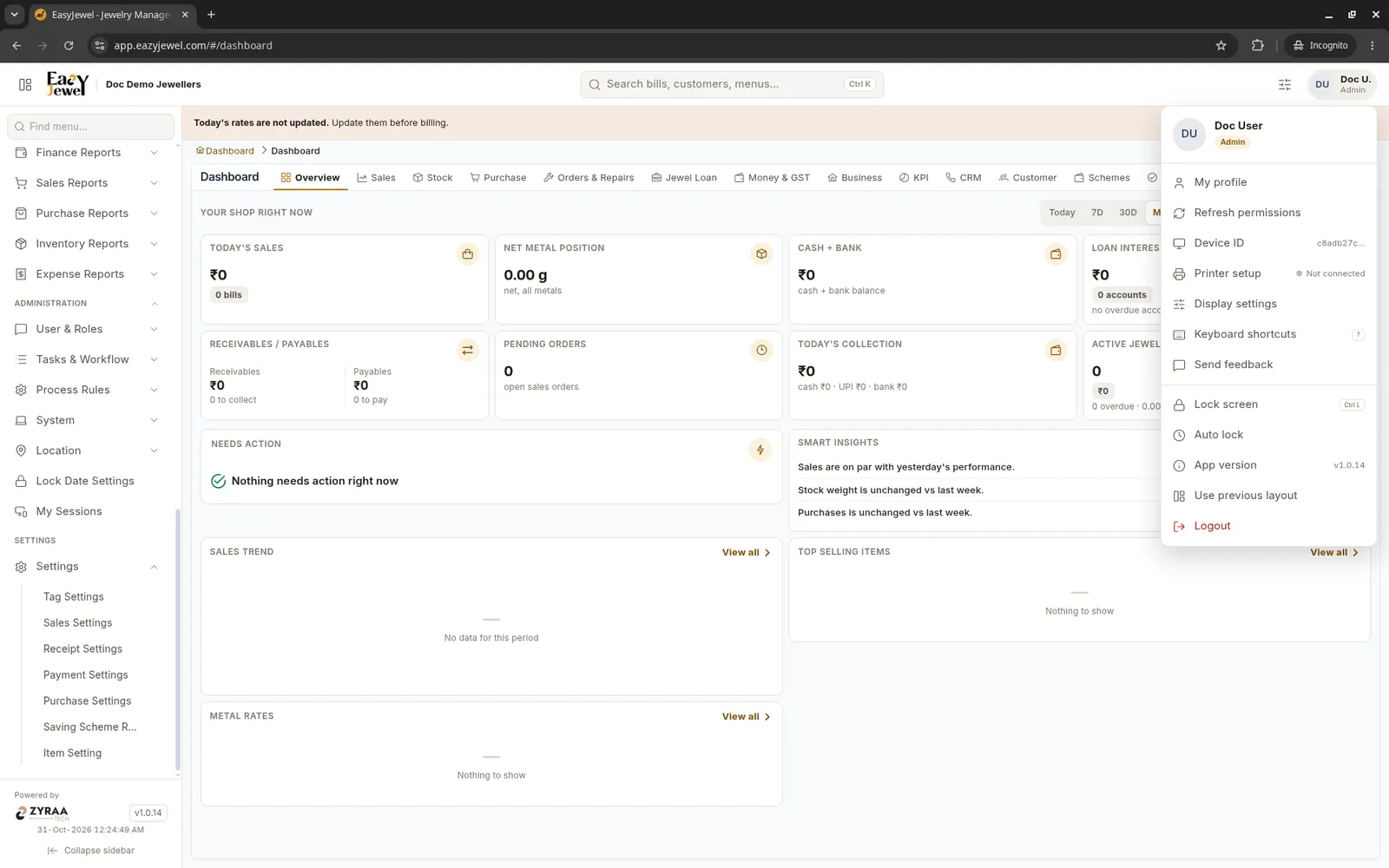
Going for a short break? Use Lock screen (Ctrl + L) from the same menu instead of logging out.