
Expenses
Add an expense
Menu: Accounts → Finance → Expense
Click Add Expense.
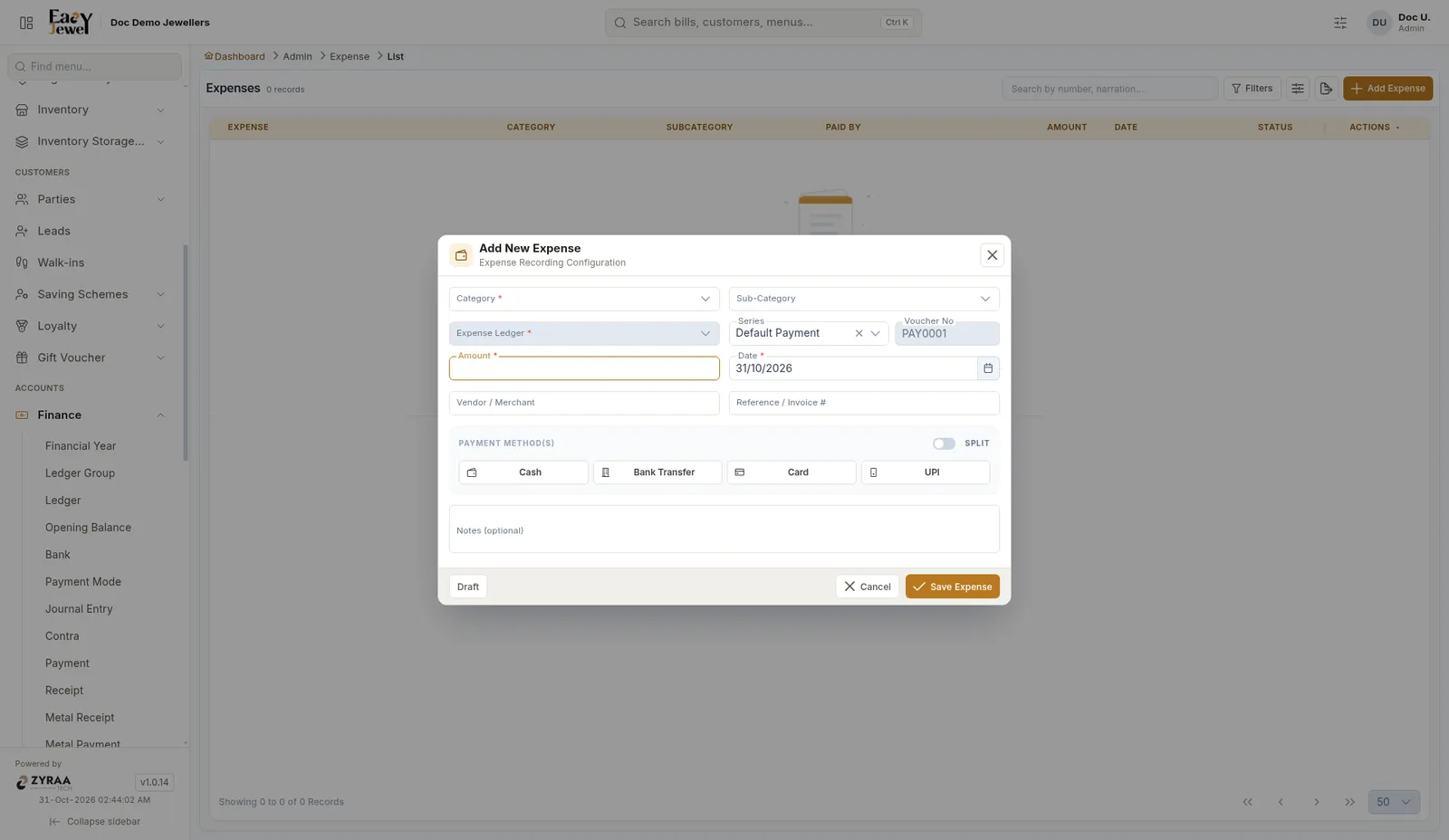
Click Save Expense, or Draft to finish later.
Expense dashboard
Menu: Accounts → Finance → Expense Dashboard
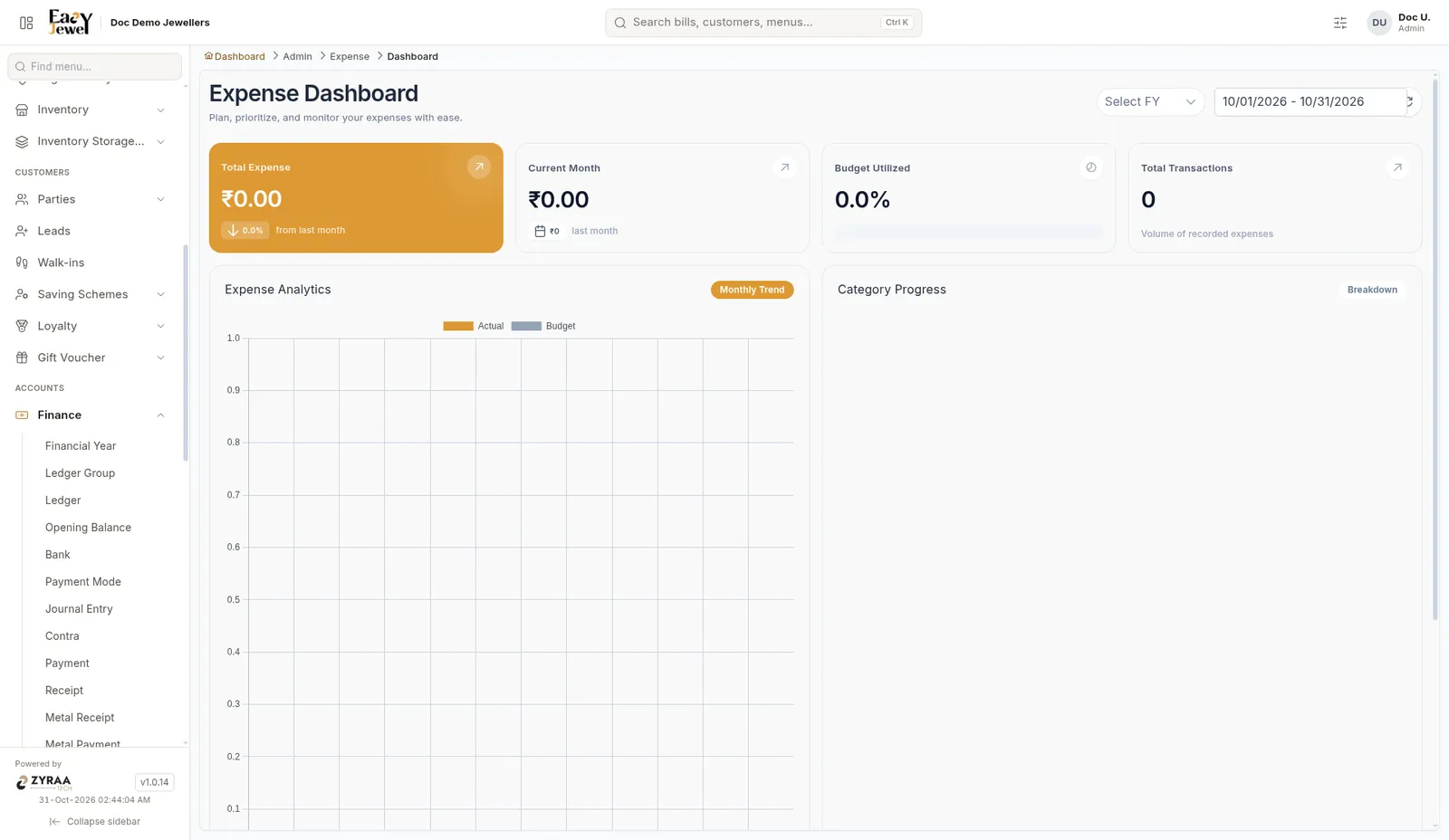
Cards show Total Expense, Current Month, Budget Utilized and Total Transactions. Expense Analytics compares actual against budget by month, and Category Progress shows each category. Pick the FY and date range at the top.
Budget
Menu: Accounts → Finance → Expense Budget
Click Add Budget to open Allocate Budget.
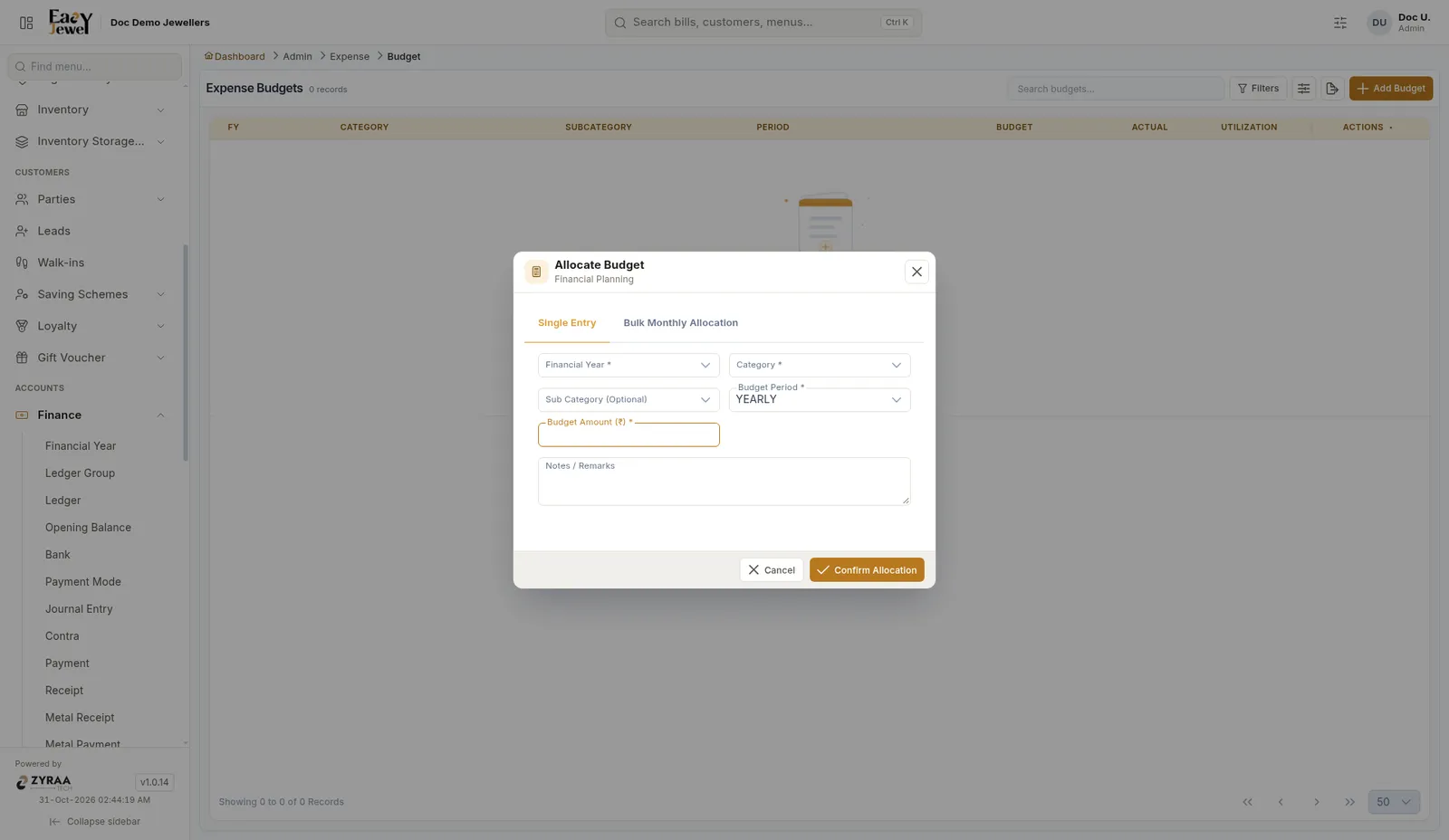
Use Single Entry or Bulk Monthly Allocation. Fill Financial Year *, Category *, Sub-Category (optional), Budget Period * (YEARLY), Budget Amount (₹) * and Notes. Click Confirm Allocation.
Categories
Menu: Accounts → Finance → Expense Category
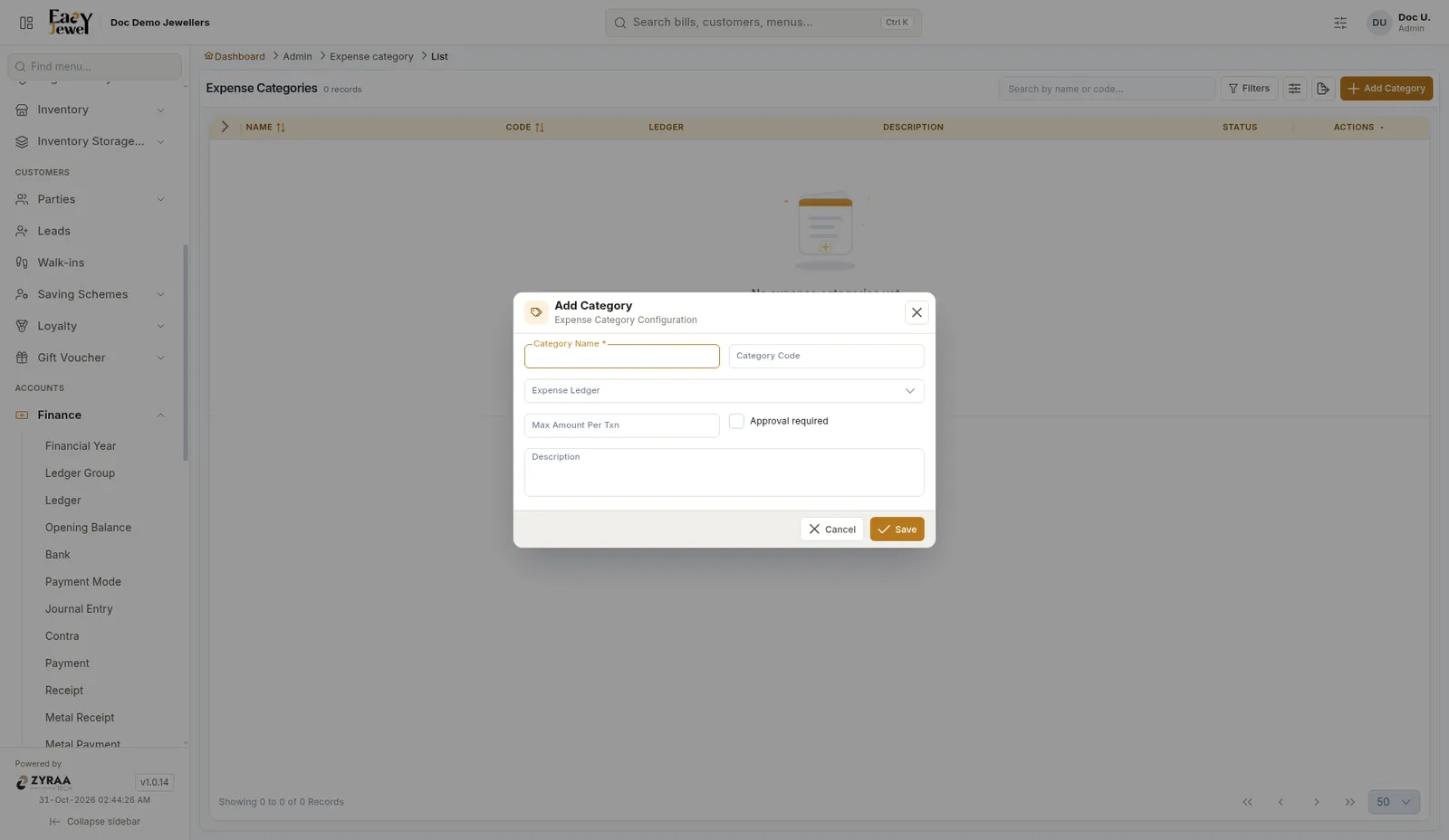
Category Name *, Category Code, Expense Ledger, Max Amount Per Txn, Approval required and Description.
Subcategories
Menu: Accounts → Finance → Expense SubCategory
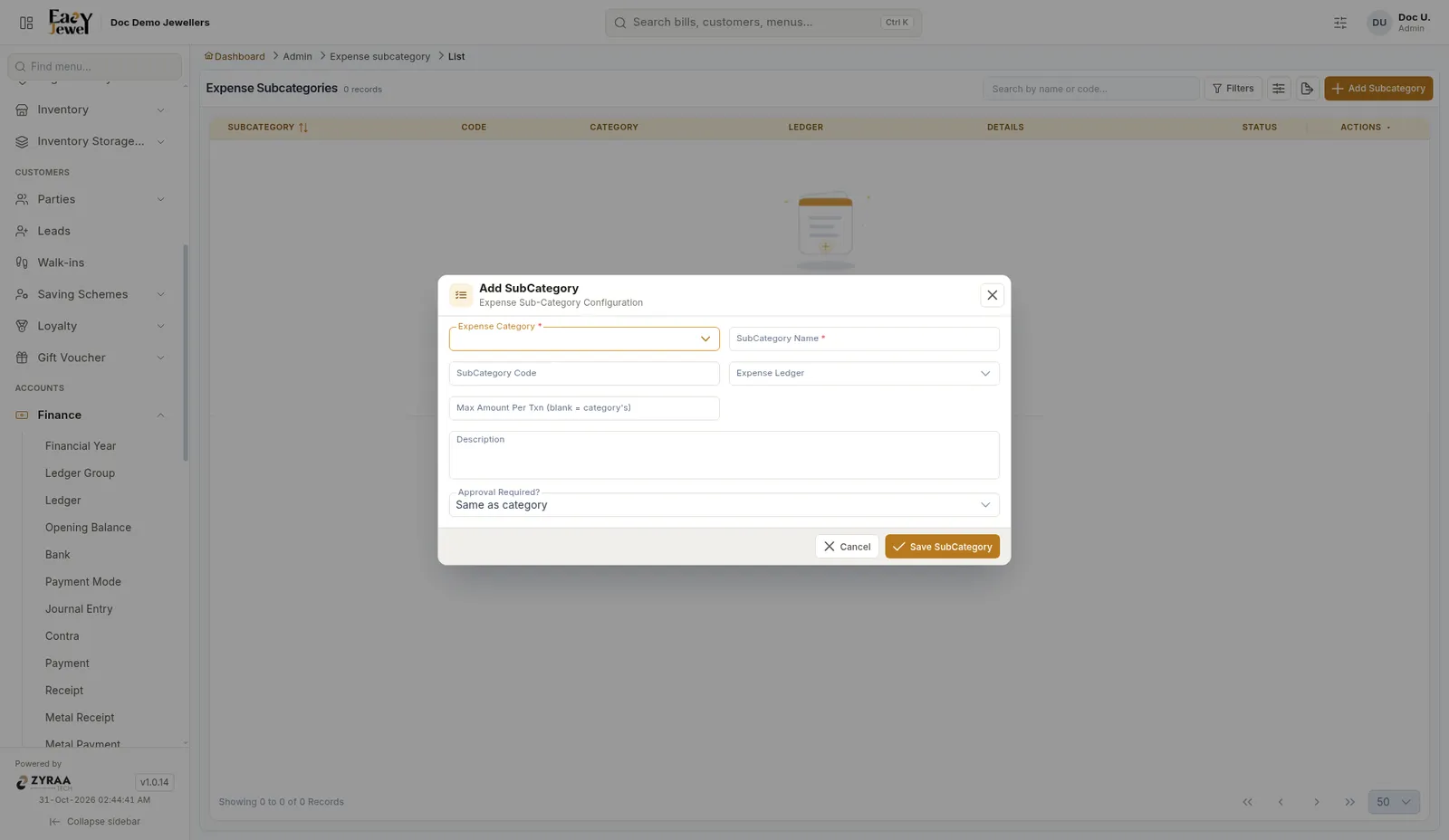
Expense Category *, SubCategory Name *, SubCategory Code, Expense Ledger, Max Amount Per Txn (blank = category’s), Description and Approval Required? (Same as category).
Expense ledgers
Menu: Accounts → Finance → Expense Ledger
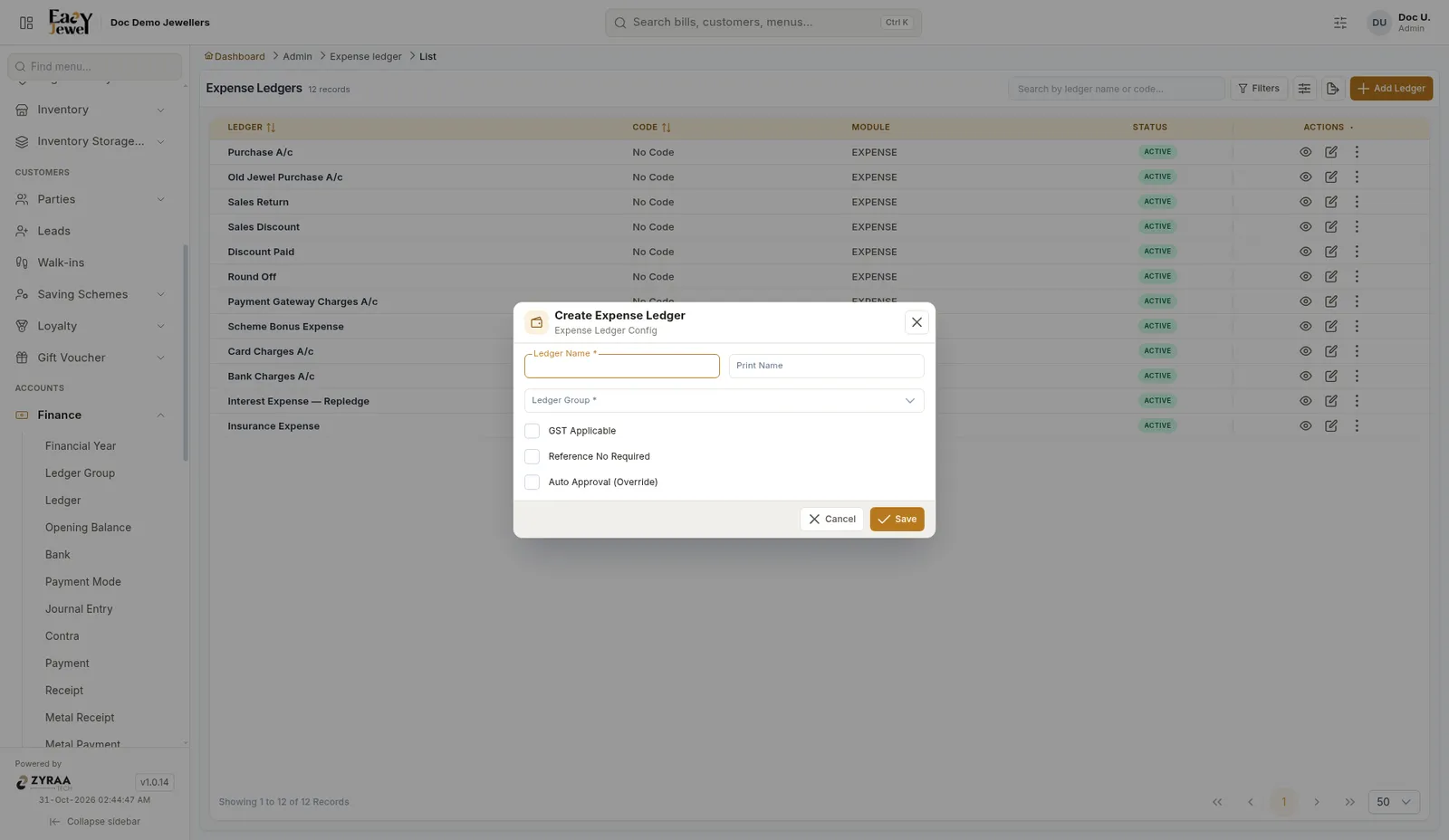
Ledger Name *, Print Name, Ledger Group *, GST Applicable, Reference No Required and Auto Approval (Override).